Local Development Setup
Get a development environment running: the fast path first, then the details — prerequisites, GPU/CUDA, database and
.envconfiguration, service startup, IDE setup, HTTPS, and troubleshooting.
Time to read: ~10 min for the fast path, ~25 min end to end Prerequisites: see Prerequisites — Python 3.14+, Node.js 24 LTS (22.12+ accepted), npm 9+, Git 2.x, and Docker 20+ or Podman 4+
This is the single setup guide for the Home Security Intelligence project. Start with Quick Setup if you just want a working environment; work down through the numbered sections for step-by-step control, GPU/CUDA setup, environment-variable details, and the validation suite. Troubleshooting is at the end under Common Issues.
Table of Contents
- Prerequisites
- Quick Setup
- Manual Setup
- 1. Clone the Repository
- 2. Backend Setup
- 3. Frontend Setup
- 4. Pre-commit Hooks
- 5. Environment Configuration
- 6. Start Infrastructure Services
- GPU Setup
- Verifying the Setup
- Development Workflow
- IDE Configuration
- Enabling HTTPS
- Common Issues
- Next Steps
- Related Documentation
Prerequisites
Before starting, ensure you have the following installed.
Required Software
| Requirement | Minimum Version | Check Command | Notes |
|---|---|---|---|
| Python | 3.14+ | python3 --version | Required for backend |
| Node.js | 24 LTS, 22.12+ accepted | node --version | Required for frontend |
| npm | 9+ | npm --version | Comes with Node.js |
| Git | 2.x | git --version | Version control |
| Container | Docker 20+ or Podman 4+ | docker --version or podman --version | Docker or Podman |
| PostgreSQL | 16+ | psql --version | Containerized setup in step 6 |
| Redis | 7+ | redis-server --version | Containerized setup in step 6 |
Optional (for GPU features)
| Requirement | Minimum Version | Check Command | Notes |
|---|---|---|---|
| NVIDIA Driver | 535+ | nvidia-smi | For GPU-accelerated AI |
| CUDA | 12.x | nvcc --version | For YOLO26 inference |
Hardware Recommendations
- RAM: 16GB minimum, 32GB recommended
- GPU: NVIDIA RTX A5500 or equivalent (24GB VRAM) for full AI pipeline
- Disk: 50GB free space for models, containers, and data
Quick Setup
The fastest way to set up your development environment:
# Clone the repository
git clone https://github.com/mikesvoboda/nemotron-v3-home-security-intelligence.git
cd nemotron-v3-home-security-intelligence

# Run the interactive setup script
python setup.py
The script (setup.py) automatically:
- Prompts for camera/model paths, ports, and security credentials (quick mode accepts defaults with Enter;
--guidedwalks you through with explanations) - Generates
.envwith secure, unique values (JWT secret, database password) and sets its permissions to600 - Optionally installs pre-commit and pre-push hooks (
python setup.py --dev)
Then sync dependencies (details in Manual Setup):
Manual Setup
If you prefer step-by-step control or the automated script fails.
1. Clone the Repository
git clone https://github.com/mikesvoboda/nemotron-v3-home-security-intelligence.git
cd nemotron-v3-home-security-intelligence
2. Backend Setup
Create and activate a Python virtual environment:
# Using uv (recommended - 10-100x faster than pip)
# Install uv: curl -LsSf https://astral.sh/uv/install.sh | sh
uv sync --extra dev

# This creates .venv and installs all dependencies from pyproject.toml
# Development tools (pre-commit, ruff, mypy, pytest) are included

# Activate the environment for manual commands
source .venv/bin/activate
Note: This project uses uv for Python dependency management with pyproject.toml as the dependency source. The uv.lock file ensures reproducible builds.
3. Frontend Setup
4. Pre-commit Hooks
Install pre-commit hooks to enforce code quality on every commit:
# Install standard pre-commit hooks
pre-commit install

# Install pre-push hooks for tests (CRITICAL - do not skip)
pre-commit install --hook-type pre-push
The pre-commit configuration (.pre-commit-config.yaml) includes:
| Hook | Stage | Purpose |
|---|---|---|
trailing-whitespace | pre-commit | Remove trailing whitespace |
end-of-file-fixer | pre-commit | Ensure files end with newline |
ruff | pre-commit | Python linting and formatting |
mypy | pre-commit | Python type checking |
prettier | pre-commit | Frontend code formatting |
eslint | pre-commit | TypeScript/JavaScript linting |
typescript-check | pre-commit | TypeScript type checking |
auto-rebase | pre-push | Rebase on origin/main |
parallel-tests | pre-push | Selected fast test tiers |
See hooks.md for the full hook reference.
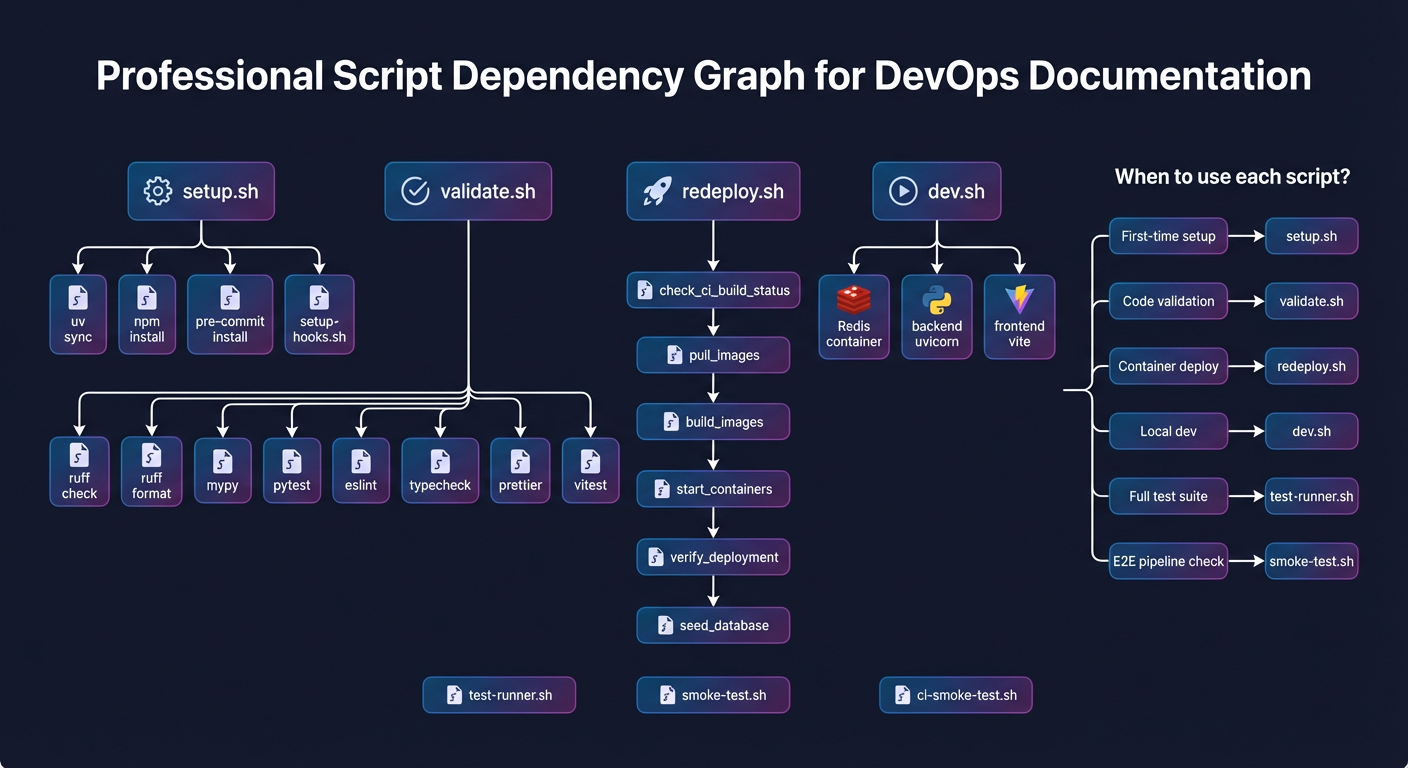
Script dependency graph showing relationships between setup scripts, validation tools, and test runners.
5. Environment Configuration
Run the setup script to generate .env with secure, unique credentials (recommended):
Or create the file from the example and edit it by hand:
Key environment variables to configure:
# Database (PostgreSQL required)
# IMPORTANT: Run python setup.py to generate .env with a secure password, or set manually:
# Generate password: openssl rand -base64 32
DATABASE_URL=postgresql+asyncpg://security:<your-password>@localhost:5432/security

# Redis
REDIS_URL=redis://localhost:6379/0

# Camera upload directory
FOSCAM_BASE_PATH=/export/foscam

# AI service endpoints (optional for dev)
# Models are served through the AI gateway (port 8090); see .env.example
AI_GATEWAY_URL=http://localhost:8090
YOLO26_URL=http://localhost:8090/yolo26
NEMOTRON_URL=http://localhost:8091
.env is the sole configuration source for the stack — docker-compose.prod.yml reads all of its config from .env. Never commit .env or secrets/ to version control. Every variable is documented in Environment Variable Reference.
6. Start Infrastructure Services
Using Docker or Podman:
# Docker
docker compose -f docker-compose.prod.yml up -d postgres redis

# OR Podman
podman-compose -f docker-compose.prod.yml up -d postgres redis

# Verify
podman ps
Or configure local services manually. See Database Management for PostgreSQL setup beyond the development container.
GPU Setup
GPU support is optional (see the Optional prerequisites above), but the full AI pipeline assumes an NVIDIA GPU.
- Install the NVIDIA driver (535+ is the supported floor — check with
nvidia-smi). Driver-level configuration is covered in GPU Setup. - Install CUDA 12.x (check with
nvcc --version); CUDA is required for YOLO26 inference. - Confirm the hardware meets the Hardware Recommendations above — 24GB VRAM for the full pipeline.
- Set the GPU assignment variables in
.env(the setup script writes them):GPU_LLMselects the GPU that hosts the Nemotron LLM (which needs roughly 22GB VRAM),GPU_AI_SERVICESthe GPU that hosts the remaining models (YOLO26, Florence, CLIP, enrichment), andBACKEND_MODEL_PRELOADto eagerly load backend models into VRAM at startup.
Multi-GPU topology and CUDA architecture details live in multi-gpu.md.
Verifying the Setup
Run the verification script:
This runs (scripts/validate.sh):
- Ruff linting - Python code style
- Ruff formatting - Python code formatting
- MyPy - Python type checking
- Pytest - Backend tests; combined unit+integration coverage gated at 80% by validate.sh
- ESLint - Frontend linting
- TypeScript - Frontend type checking
- Prettier - Frontend formatting
- Vitest - Frontend tests
All checks must pass before committing code.
Development Workflow
Starting the Development Servers
Backend:
source .venv/bin/activate
python -m backend.main

# Or with hot reload
uvicorn backend.main:app --host 0.0.0.0 --port 8000 --reload
Frontend:
Full stack with AI services:
Running Tests
# Backend tests
pytest backend/tests/ -v

# Frontend tests
cd frontend && npm test

# Full test suite with coverage
./scripts/test-runner.sh
See testing.md for comprehensive test documentation.
IDE Configuration
VS Code (Recommended)
Create .vscode/settings.json:
{
  "python.defaultInterpreterPath": "${workspaceFolder}/.venv/bin/python",
  "python.analysis.typeCheckingMode": "basic",
  "python.formatting.provider": "none",
  "[python]": {
    "editor.defaultFormatter": "charliermarsh.ruff",
    "editor.formatOnSave": true,
    "editor.codeActionsOnSave": {
      "source.fixAll": "explicit",
      "source.organizeImports": "explicit"
    }
  },
  "[typescript]": {
    "editor.defaultFormatter": "esbenp.prettier-vscode",
    "editor.formatOnSave": true
  },
  "[typescriptreact]": {
    "editor.defaultFormatter": "esbenp.prettier-vscode",
    "editor.formatOnSave": true
  },
  "eslint.workingDirectories": ["frontend"],
  "typescript.tsdk": "frontend/node_modules/typescript/lib"
}
Recommended extensions:
- Python:
ms-python.python,charliermarsh.ruff - Frontend:
esbenp.prettier-vscode,dbaeumer.vscode-eslint - General:
bradlc.vscode-tailwindcss,eamodio.gitlens
PyCharm / WebStorm
- Set Python interpreter to
.venv/bin/python - Enable Ruff as external tool for linting
- Configure ESLint in frontend directory
- Enable Prettier for TypeScript files
Enabling HTTPS
For secure local development or production deployment, you can enable HTTPS:
# Generate self-signed certificate for development
./scripts/generate-certs.sh

# Enable HTTPS
echo "SSL_ENABLED=true" >> .env

# Restart frontend
docker compose -f docker-compose.prod.yml restart frontend
Access at https://localhost:8444 (the default FRONTEND_HTTPS_PORT host mapping). See SSL/HTTPS Configuration for complete documentation.
Common Issues
Pre-commit Fails on First Run
Pre-commit may need to download hooks on first run:
If hooks fail, fix the issues before committing. Never use --no-verify.
Database Connection Errors
Ensure PostgreSQL is running:
# Docker
docker compose -f docker-compose.prod.yml up -d postgres

# OR Podman
podman-compose -f docker-compose.prod.yml up -d postgres
Check connection:
Import Errors in Tests
Activate the virtual environment:
The test configuration automatically adds backend to the Python path.
Node Modules Issues
Clear and reinstall:
Next Steps
- Codebase Tour - Understand the directory structure
- Hooks - Pre-commit configuration
- Pipeline Overview - AI processing flow
- Testing Guide - Learn the test strategy and how to write tests
- Contributing Guide - Understand the PR process
- Code Patterns - Learn key patterns used in the codebase
- SSL/HTTPS Configuration - Enable HTTPS for secure connections
Related Documentation
- GPU Setup - GPU driver configuration for AI
- Database Management - PostgreSQL setup
- Environment Variable Reference - Configuration options
- AGENTS.md - Project instructions and rules
- Backend AGENTS.md - Backend architecture overview
- Frontend AGENTS.md - Frontend architecture overview