First Run
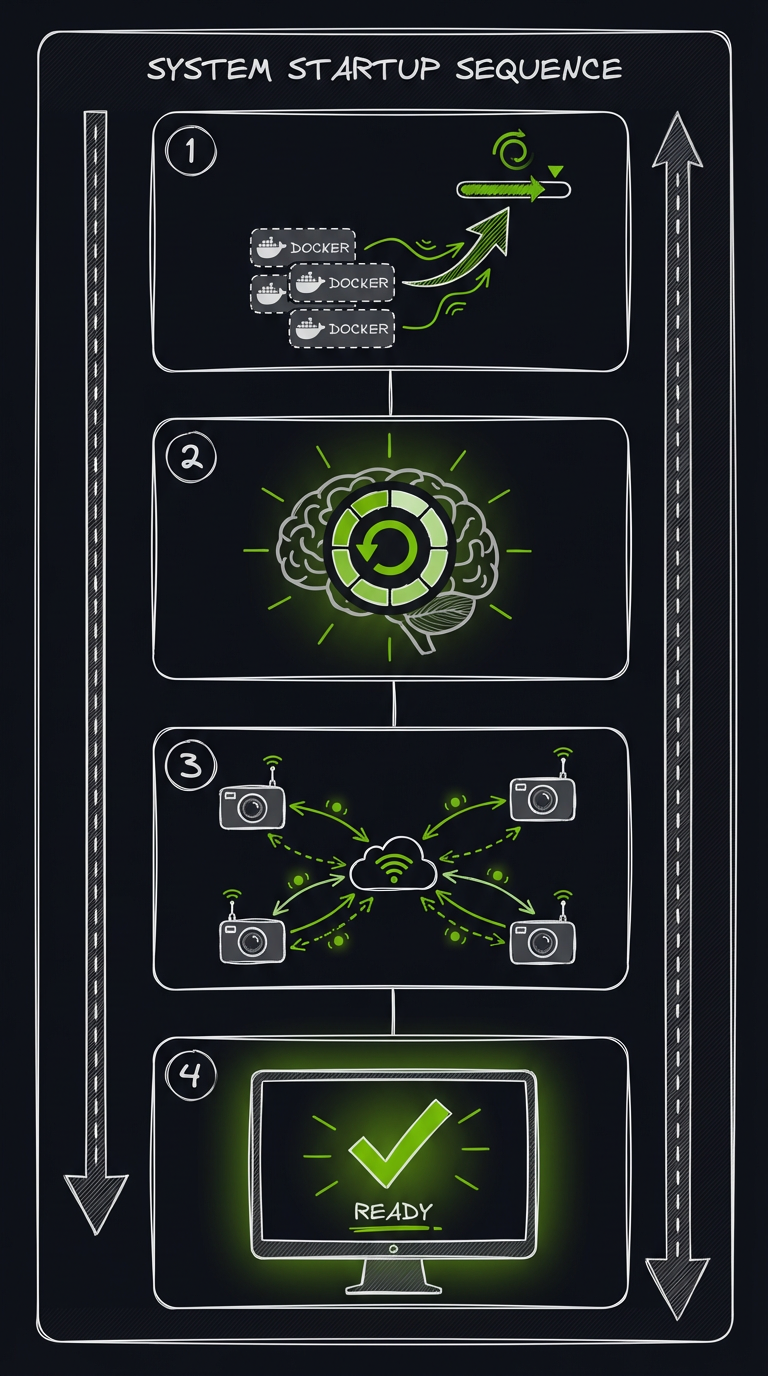
AI-generated visualization of system startup sequence showing container initialization, model loading, camera connections, and dashboard ready state.
This guide walks you through starting the system for the first time and verifying all components are working.
Choose Your Deployment Mode
Use this decision tree to determine the best deployment path for your setup:
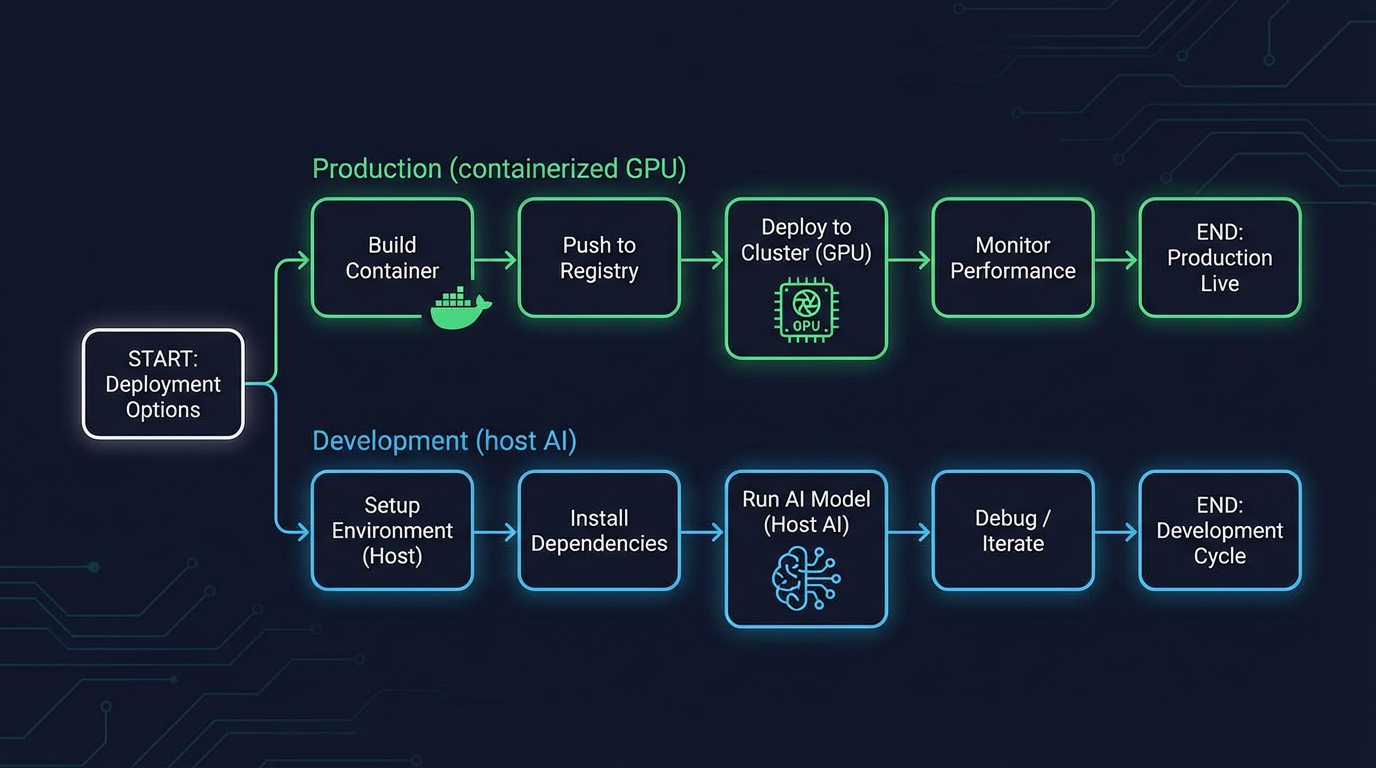
Quickstart decision tree: Choose Production Mode for simplest setup with everything containerized, or Development Mode for faster AI iteration with native GPU access.
There are two deployment paths. Choose the one that fits your setup:
| Mode | AI Services | Use Case | Docker Compose File |
|---|---|---|---|
| Production | Run in containers | Simplest setup, everything containerized | docker-compose.prod.yml |
Important: Do NOT run the host AI scripts (
./ai/start_detector.sh,./ai/start_llm.sh) at the same time asdocker-compose.prod.yml— theai-gatewayandai-llmcontainers already claim ports 8090 and 8091, so the host servers will fail to bind.
Option A: Production Mode (Recommended)
All services run in containers, including GPU-accelerated AI servers.
Prerequisites
- NVIDIA GPU with
nvidia-container-toolkitinstalled - AI model storage configured (see
docs/operator/ai-installation.md) .envanddocker-compose.override.ymlwritten bypython setup.py(see Installation)
Start Everything
# Docker
docker compose -f docker-compose.prod.yml up -d

# OR Podman
podman compose -f docker-compose.prod.yml up -d
What starts (docker-compose.prod.yml) — 21 services; the ones you interact with day one:
| Service | Host port | Purpose |
|---|---|---|
| postgres | 5432 | Database |
| redis | 6379 | Queues + pub/sub |
| ai-gateway | 8090 (metrics 8002) | Single AI entrypoint — YOLO26, Florence-2, CLIP, enrichment |
| ai-llm | 8091 | Nemotron LLM risk analysis (llama.cpp) |
| go2rtc | 1984 / 8555 | Camera stream relaying |
| backend | 8000 | FastAPI + WebSocket |
| frontend | 8080 / 8444 | React dashboard via nginx (HTTP / HTTPS) |
The rest is the observability stack (prometheus, grafana on 3002, loki, tempo, alertmanager, pyroscope, alloy, the exporters) plus foscam-init, a one-shot job that prepares the camera directory.
Port Note: Every service binds
127.0.0.1only, except the frontend, which listens on all interfaces. The dashboard is on port 8080 (HTTP) by default, configurable viaFRONTEND_HTTP_PORT, and port 8444 (HTTPS) when enabled viaSSL_ENABLED=true, configurable viaFRONTEND_HTTPS_PORT. The HTTPS listener serves auto-generated self-signed certificates; the backend's own AI calls go to the gateway over compose DNS, not through these ports.
Verify Production Deployment
# Docker
docker compose -f docker-compose.prod.yml ps

# OR Podman
podman compose -f docker-compose.prod.yml ps

# Expected: every service "Up (healthy)" (or the one-shot foscam-init "Completed").
# The LLM container takes the longest — its healthcheck allows up to 5 minutes
# for model load. Re-run the command until everything is healthy.
Register the First Admin
A fresh install serves nothing useful until you create the first account. The API returns 503 for every route except setup, health, and metrics (SetupGuardMiddleware) until an admin exists.
Open the dashboard — it will show the setup page — and register the first admin account there, or do it via the API:
# Confirm setup is pending
curl -s http://localhost:8000/api/auth/setup-status

# Register the first admin (username: 3-50 chars of letters/digits/_/-;
# password: 8+ chars with an uppercase letter, a lowercase letter, and a digit)
curl -X POST http://localhost:8000/api/auth/register \
  -H "Content-Type: application/json" \
  -d '{"username": "admin", "email": "you@example.com", "password": "<choose-one>"}'
Access Dashboard
Open http://localhost:8080 (HTTP), or https://localhost:8444 (HTTPS, if SSL_ENABLED=true).
HTTPS Note: SSL is off by default (
SSL_ENABLED=falsein the compose file). Enable it in.envand recreate the frontend container to get HTTPS with auto-generated self-signed certificates. Your browser will show a certificate warning because the certificate is self-signed — accept it to proceed. For trusted certificates, see the SSL/HTTPS Configuration Guide.
Option B: Development Mode (Host AI)
AI servers run natively on the host for faster iteration; everything else runs in containers.
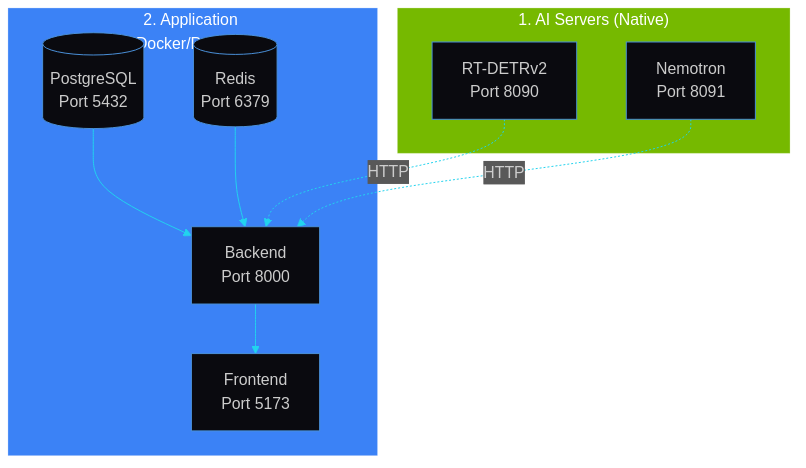
Development mode: AI servers run natively on the host, application services run in containers.
Why host AI servers? Faster restart times during model development, easier debugging, and simpler GPU access without container runtime configuration.
Scope: Host-run AI replaces only what the containers provide:
./ai/start_detector.shstands in for the gateway's/yolo26router, and./ai/start_llm.shfor theai-llmcontainer. Florence/CLIP/enrichment have no host-run launcher yet, so for now startai-gatewayas a container as well.
Step 1: Start AI Servers
Open two separate terminal windows for the AI servers.
Terminal 1: YOLO26 Detection Server
What happens (ai/yolo26/model.py):
- Loads YOLO26 via HuggingFace Transformers (
YOLO26_MODEL_PATH) - Listens on port 8090 (
YOLO26_PORToverrides; the script exportsPORT) - Uses ~4GB VRAM
Expected output:
Starting YOLO26v2 Detection Server...
Model directory: /path/to/repo/ai/yolo26
Port: 8090
Expected VRAM usage: ~4GB
INFO:     Uvicorn running on http://0.0.0.0:8090
Terminal 2: Nemotron LLM Server
What happens (ai/start_llm.sh:36-43):
- Loads a Nemotron GGUF via llama.cpp — by default
ai/nemotron/nemotron-mini-4b-instruct-q4_k_m.gguf(~3GB VRAM, 4K context); override the file withNEMOTRON_MODEL_PATH - Listens on port 8091 (
NEMOTRON_PORToverrides)
Expected output:
Starting Nemotron LLM Server via llama.cpp...
Model: /path/to/repo/ai/nemotron/nemotron-mini-4b-instruct-q4_k_m.gguf
Port: 8091
Context size: 4096
GPU layers: 99 (all layers)
Verify AI Servers
# Check YOLO26 (root path — the standalone server has no /yolo26 prefix)
curl http://localhost:8090/health
# Expected: JSON describing model + CUDA status

# Check Nemotron
curl http://localhost:8091/health
# Expected: {"status": "ok"}
Step 2: Point the Stack at Host AI, Then Start It
The backend reaches AI services purely through URL environment variables from .env — there is no AI_HOST variable. For host-run AI set:
# In .env (native-dev defaults are already shown this way in .env.example):
USE_AI_GATEWAY=false
YOLO26_URL=http://host.docker.internal:8090     # Docker Desktop, or your host IP
NEMOTRON_URL=http://host.docker.internal:8091   # Podman: http://host.containers.internal:8091
Podman on Linux:
host.containers.internalresolves inside the default Podman network; if it doesn't on your host, use the host's LAN IP (e.g.http://192.168.1.100:8090).
Then start the containers without the two AI services, so they don't fight the host servers for ports 8090/8091 (if you couldn't start ai-gateway's other routers above, add it back to the list):
# Docker
docker compose -f docker-compose.prod.yml up -d postgres redis go2rtc backend frontend

# OR Podman
podman compose -f docker-compose.prod.yml up -d postgres redis go2rtc backend frontend
Verify Development Deployment
# Docker
docker compose -f docker-compose.prod.yml ps

# OR Podman
podman compose -f docker-compose.prod.yml ps

# Expected: the services you started are "Up (healthy)". Use `ps` rather than
# pattern-matching container names — compose derives container names from the
# project directory unless a service pins container_name (e.g. hsi-go2rtc).
Access Dashboard
Open http://localhost:8080 (HTTP) or https://localhost:8444 (HTTPS) — same as production. Register the first admin on first boot as described above.
Post-Startup Verification
After starting with either mode, verify all services are communicating:
Backend Health Check
Expected response (shape per the backend's HealthResponse schema — service names are keys in services):
{
  "status": "healthy",
  "services": {
    "database": { "status": "healthy" },
    "redis": { "status": "healthy" },
    "ai": { "status": "healthy" }
  },
  "timestamp": "2026-09-22T12:00:00Z",
  "recent_events": [],
  "memory": { "rss_mb": 250.1 }
}
The endpoint returns HTTP 200 when healthy and 503 when degraded or unhealthy.
Individual Health Endpoints
# Readiness probe (fast)
curl http://localhost:8000/api/system/health/ready

# Per-AI-service status
curl http://localhost:8000/api/health/ai-services

# GPU Stats
curl http://localhost:8000/api/system/gpu
Configure Your First Camera
You usually don't need to register cameras at all: the backend's file watcher auto-creates a camera record the first time it sees a new image under any subfolder of the camera root. To set it up:
-
Point your camera's FTP at
<FOSCAM_BASE_PATH>/<folder>/on the host — by default/export/foscam/front_door/. On the host that is your FTP destination; inside the backend container the same directory is mounted at/cameras/front_door(compose always mounts the camera root at/cameras). -
Via Dashboard (to review or edit): Settings → Cameras (
/settings/cameras). -
Via API (cameras are matched by folder path, so use the path as the backend sees it):
curl -X POST http://localhost:8000/api/cameras \
  -H "Content-Type: application/json" \
  -d '{
    "name": "Front Door",
    "folder_path": "/cameras/front_door",
    "status": "online"
  }'
Viewing Logs
Production Mode
# Docker
docker compose -f docker-compose.prod.yml logs -f
docker compose -f docker-compose.prod.yml logs -f backend

# OR Podman
podman compose -f docker-compose.prod.yml logs -f
podman compose -f docker-compose.prod.yml logs -f backend
Development Mode
AI server logs appear in the terminal windows where you started them.
# Docker
docker compose -f docker-compose.prod.yml logs -f backend

# OR Podman
podman compose -f docker-compose.prod.yml logs -f backend
Stopping the System
Production Mode
# Docker
docker compose -f docker-compose.prod.yml down
docker compose -f docker-compose.prod.yml down -v  # Full cleanup (removes volumes)

# OR Podman
podman compose -f docker-compose.prod.yml down
podman compose -f docker-compose.prod.yml down -v  # Full cleanup (removes volumes)
Development Mode
# Docker
docker compose -f docker-compose.prod.yml down

# OR Podman
podman compose -f docker-compose.prod.yml down

# Stop AI Servers: Press Ctrl+C in each terminal
Troubleshooting
AI servers won't start
# Check GPU availability
nvidia-smi

# Check model files exist (host-run start_llm.sh wants the Mini 4B GGUF locally)
ls -la ai/nemotron/*.gguf
# YOLO26 weights are fetched via HuggingFace; use /health to confirm the model loaded

# Check port availability (gateway: 8090, LLM: 8091)
lsof -i :8090
lsof -i :8091
Port conflict on 8090/8091
This happens when you run the host AI scripts while ai-gateway/ai-llm containers are also up.
Solution: Choose one path:
- Production: Stop the host AI servers, use
docker-compose.prod.ymlonly - Development: Run AI servers natively on the host and point
YOLO26_URL/NEMOTRON_URL(in.env) at them — see Option B
Backend can't reach AI services
# Find the backend container name
podman compose -f docker-compose.prod.yml ps backend

# From inside the container - Docker
docker exec <backend-container> curl http://host.docker.internal:8090/health

# From inside the container - Podman
podman exec <backend-container> curl http://host.containers.internal:8090/health

# Check the URL vars the container actually has
podman compose -f docker-compose.prod.yml exec backend env | grep -E "YOLO26_URL|NEMOTRON_URL"
Database connection issues
# Docker
docker compose -f docker-compose.prod.yml ps postgres
docker compose -f docker-compose.prod.yml logs postgres

# OR Podman
podman compose -f docker-compose.prod.yml ps postgres
podman compose -f docker-compose.prod.yml logs postgres
Frontend not loading
# Check nginx logs (production) - Docker or Podman
docker compose -f docker-compose.prod.yml logs frontend
# OR
podman compose -f docker-compose.prod.yml logs frontend

# Verify backend is healthy
curl http://localhost:8000/api/system/health
Next Steps
System is running. Continue with:
- Dashboard Guide - Learn to use the dashboard
- Configuration Reference - Customize settings
- Upgrading - Future version upgrades