Getting Started
Welcome to your home security system! This guide will help you understand what it does and how to use it.
What Does This System Do?
Think of this system as a smart security guard that watches your cameras 24/7.
When your cameras capture images, the system:
- Looks at each image to see if there's a person, vehicle, animal, or package
- Thinks about what it sees - Is this normal activity? Is this concerning?
- Tells you what's happening with a simple summary and a risk score (0-100)
Instead of you having to watch hours of boring footage, the system only shows you the interesting moments and explains why they might matter.
For example, instead of just saying "person detected," it might say:
"Unknown person approaching back entrance at 2am - this is unusual activity for this time and location."
How It All Works (The Simple Version)
flowchart LR
    subgraph YourCameras["Your Security Cameras"]
        CAM["Cameras take pictures"]
    end

    subgraph TheSystem["Smart Security System"]
        AI["AI analyzes images<br/>Identifies people, cars, etc.<br/>Assesses risk level"]
    end

    subgraph YouSeeIt["What You See"]
        DASH["Dashboard shows<br/>alerts & summaries"]
    end

    CAM --> |"Images upload<br/>automatically"| AI
    AI --> |"Important events<br/>appear in real-time"| DASH

    style YourCameras fill:#1A1A1A,stroke:#76B900,color:#fff
    style TheSystem fill:#1A1A1A,stroke:#76B900,color:#fff
    style YouSeeIt fill:#1A1A1A,stroke:#76B900,color:#fff
You don't need to do anything to make this work - the cameras, AI, and dashboard all work together automatically.
Opening the Dashboard
To view your security dashboard:
- Open your web browser (Chrome, Safari, Firefox, or Edge all work)
- Go to the address the installer gives you. On the machine the system runs on, the dashboard is served by the
frontendcontainer athttp://localhost:8080(HTTP) orhttps://localhost:8444(HTTPS). Both host ports are configurable in.envviaFRONTEND_HTTP_PORTandFRONTEND_HTTPS_PORT.
That's it! The dashboard should appear automatically.
Tip: Bookmark this page for easy access. You can also create a shortcut on your desktop or phone home screen.
What You'll See When You First Open It
When you open the dashboard, you'll see several sections:
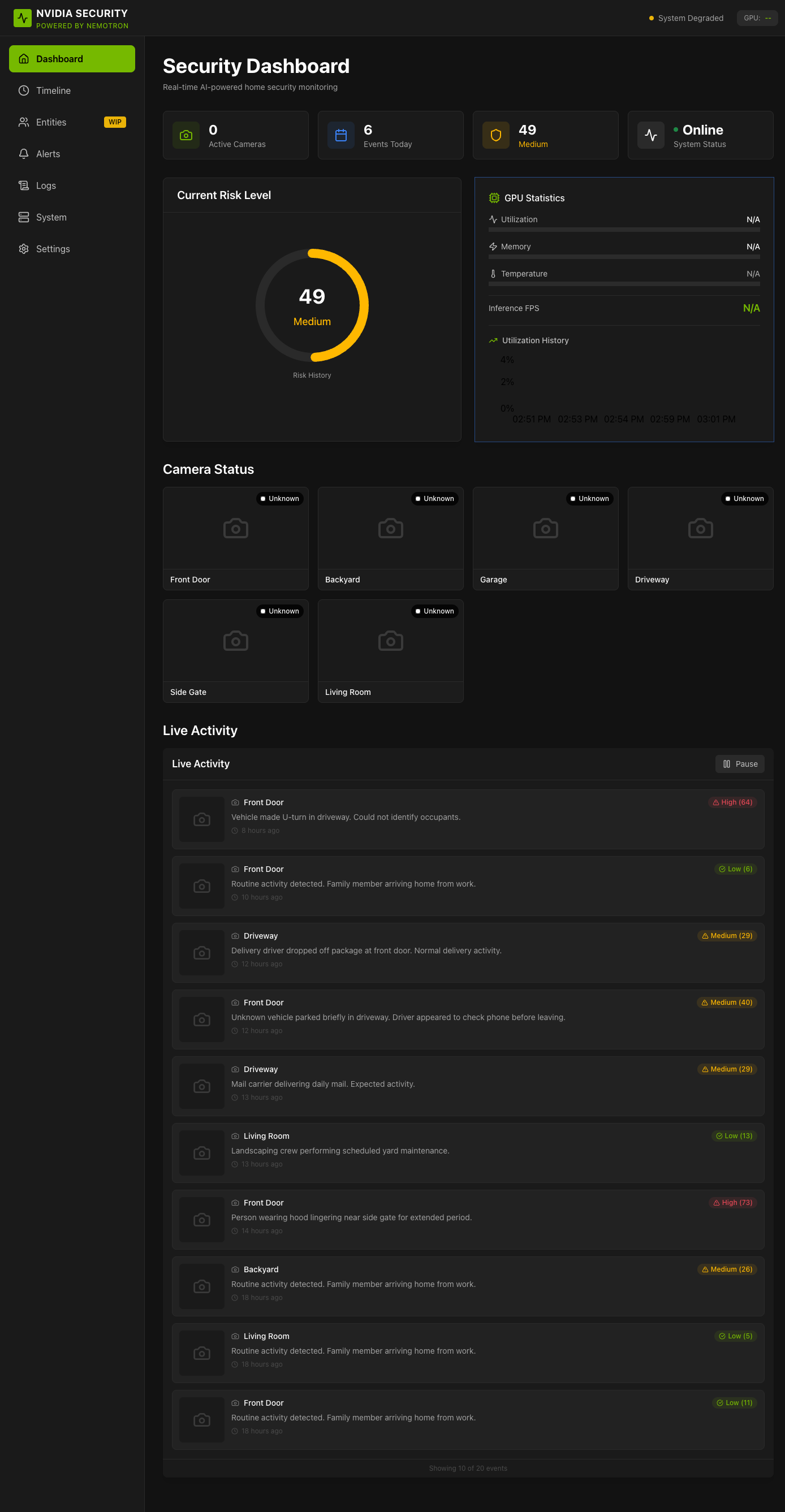
The main dashboard view showing all key components at a glance.
The Main Dashboard
This is your home base. Here's what each part shows you:
| Section | What It Shows |
|---|---|
| Stats Row | Quick numbers - how many cameras are on, events today, current risk level |
| Risk Gauge | A dial showing the current risk level (0-100). Green is calm, yellow needs attention, red is urgent |
| GPU Performance | Technical info about how the AI is running (you can ignore this) |
| Camera Status | Thumbnails from each camera showing they're working |
| Live Activity | A scrolling list of recent events with AI summaries |
The Sidebar Menu
On the left side, you'll see navigation options organized into collapsible groups:
MONITORING
| Menu Item | What's There |
|---|---|
| Dashboard | The main overview (where you start) |
| Timeline | History of all events - you can filter by camera, date, or risk level |
| Entities | Recognized people, vehicles, and tracked objects |
| Alerts | Events that need your attention |
ANALYTICS (expanded by default)
| Menu Item | What's There |
|---|---|
| Analytics | Charts and statistics about security events |
| Video Analytics | Video-based analytics views |
| AI Audit | Review AI decision-making and accuracy |
| AI Performance | Monitor AI model performance metrics |
| AI Services | Status of each AI service |
| Profiling | System performance profiling tools |
| Heatmaps | Where activity happens in each camera view |
The ANALYTICS group also includes Plate Reads, Face Recognition, Scene Changes, Object Tracks, Performance, Household, and Re-Identification.
OPERATIONS (collapsed by default)
| Menu Item | What's There |
|---|---|
| Jobs | Background job status and management |
| Pipeline | AI processing pipeline operations |
| Notifications | Notification delivery status |
| GPU Metrics | Per-GPU utilization charts |
| Request Profiling | Per-request timing |
| Tracing | Request tracing for debugging |
| Logs | Technical system logs (troubleshooting) |
ADMIN (collapsed by default)
| Menu Item | What's There |
|---|---|
| Zones | Detection zones per camera |
| Audit Log | Security audit trail |
| Data Management | Data import/export operations |
| Scheduled Reports | Configure automated report generation |
| Webhooks | Manage webhook integrations |
| Trash | Recover deleted events |
| GPU Settings | Configure GPU allocation for AI processing |
| Settings | Batch window, retention, alerts, and other settings |
An Empty Dashboard Is Normal at First
A freshly installed system has no events to show. The dashboard fills in only after cameras start uploading images and the AI pipeline processes them. Nothing is broken if the activity feed is empty on the first run.
To put real events through the pipeline without waiting for camera activity, an operator can run the seeding script, which pushes bundled synthetic images end-to-end (file watcher → detection → batching → risk analysis):
Events created this way are ordinary events in the database, so they are indistinguishable from camera events after the fact. Delete them through ADMIN > Data Management or ADMIN > Trash when you are done experimenting.
Quick Tips for Getting Started
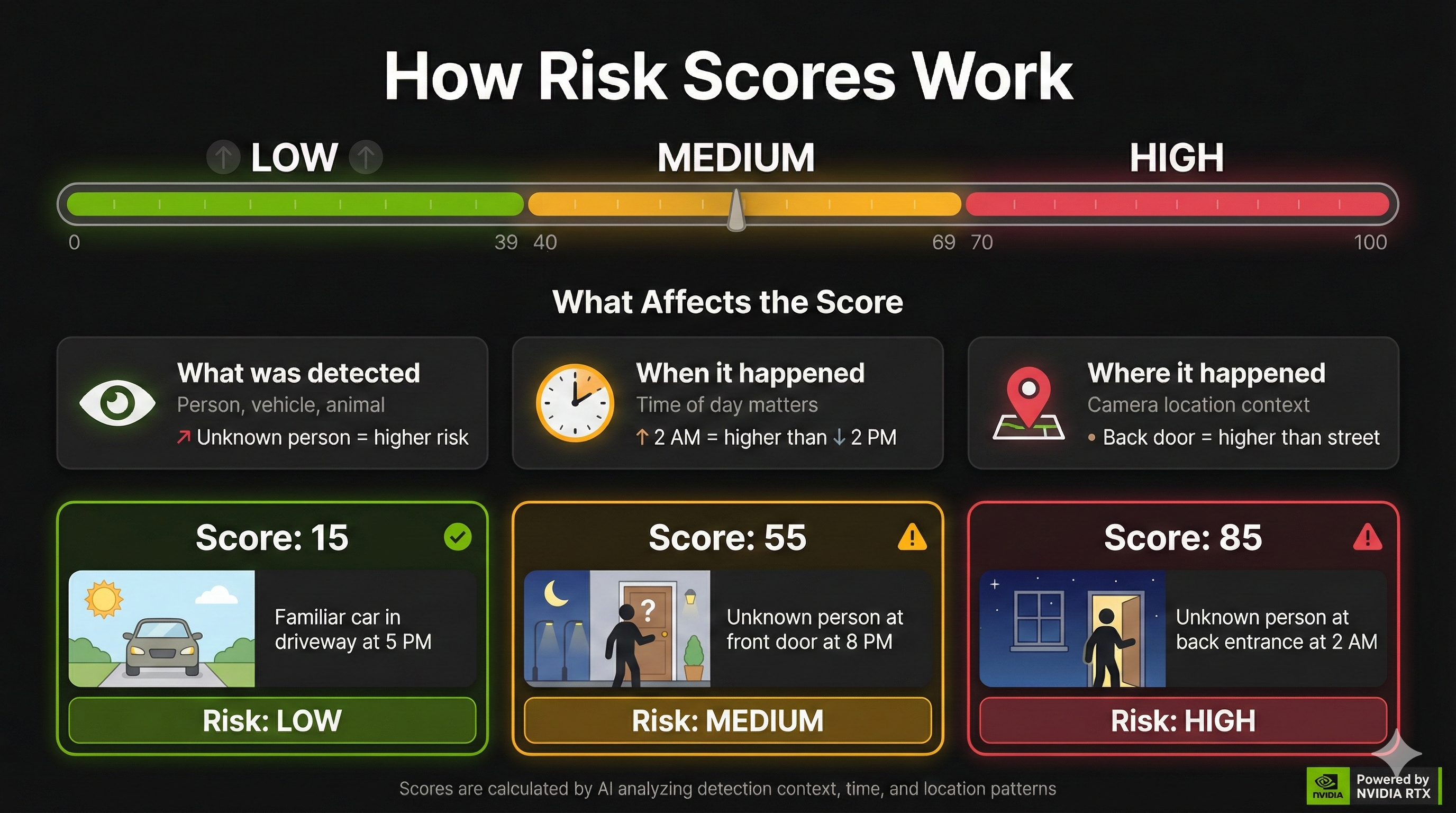
The Risk Gauge shows your current security status at a glance.
-
Check the Risk Gauge first - If it's green (0-29), everything is calm. Yellow (30-59) means take a look. Orange/Red (60-100) deserves prompt attention. See Risk Levels Reference for details.
-
Click on events to see details - Each event in the activity feed can be clicked to see the full AI analysis, including the original image and reasoning.
-
Use the Timeline for history - Need to check what happened last night? The Timeline page lets you search and filter past events.
-
Don't worry about false alarms - The AI learns and improves over time. Animals, delivery people, and normal activity usually get low risk scores.
Next Steps
- Dashboard - Detailed guide to all dashboard features
- Understanding Alerts - What the risk levels mean and when to take action
Need Help?
If the dashboard isn't loading or something looks wrong:
- Make sure the system is running (ask whoever set it up)
- Try refreshing the page in your browser
- Try a different browser if one isn't working
For technical help, contact the person who installed the system.