AI Services Management
Start, stop, verify, and monitor AI inference services.
Time to read: ~8 min Prerequisites: AI Configuration
Two Ways To Run AI
| Mode | What runs | Use for |
|---|---|---|
| Containerized (production, recommended) | ai-gateway (Triton: YOLO26, Florence-2, CLIP, enrichment light + heavy) on host port 8090, plus ai-llm (llama.cpp) on 8091 | Everything except local development |
| Host-run | ./ai/start_detector.sh (standalone YOLO26 server) and ./ai/start_llm.sh / ./ai/start_nemotron.sh (llama.cpp) | Debugging a model outside a container |
The containerized stack is what docker-compose.prod.yml starts; there is no scripts/start-ai.sh in this repository — that wrapper was removed. Manage host-run services with the ./ai/start_*.sh scripts below and pkill.
For "which URL should I use?" (container DNS vs host vs remote), start with: Deployment Modes & AI Networking.
Host-run services
# Terminal 1: standalone YOLO26 detection server (PORT defaults to ${YOLO26_PORT:-8090})
./ai/start_detector.sh

# Terminal 2: Nemotron via llama.cpp (port ${NEMOTRON_PORT:-8091})
./ai/start_nemotron.sh      # prefers the 30B GGUF, falls back to the mini 4B
./ai/start_llm.sh           # mini 4B only, 4096 ctx, --n-gpu-layers 99
Both bind 0.0.0.0 so a containerised backend can reach them. First startup takes 2-3 minutes for model loading, CUDA initialisation and warmup inferences.
Stop them with pkill -f model.py and pkill -f llama-server.
Production (containerized AI services)
Start the full stack:
Start only the core services:
Start only the AI services:
Stop:
Service Management
Check Status
podman compose -f docker-compose.prod.yml ps ai-gateway ai-llm
podman inspect --format '{{.State.Health.Status}}' ai-gateway ai-llm
Restart
podman compose -f docker-compose.prod.yml restart ai-gateway
podman compose -f docker-compose.prod.yml restart ai-llm
Useful after model updates, configuration changes, or a crash loop. Rebuilding after a code change always takes --no-cache (cached layers hold stale code):
podman compose -f docker-compose.prod.yml build --no-cache ai-gateway
podman compose -f docker-compose.prod.yml up -d ai-gateway
Startup Timing
| Service | start_period | Why |
|---|---|---|
ai-gateway | 180s | Triton initialises all models |
ai-llm | 300s | 31B parameter model loads tensors onto the GPU |
A service reported unhealthy inside its start_period is still loading, not broken.
Verification
Aggregate health
curl -s http://localhost:8090/health | jq    # ai-gateway (all Triton models)
curl -s http://localhost:8091/health | jq    # ai-llm (llama.cpp)
ai-gateway/health returns "healthy" only when Triton's server is ready and every model reports ready; otherwise "degraded".
Per-router health
curl -s http://localhost:8090/yolo26/health | jq
curl -s http://localhost:8090/florence/health | jq
curl -s http://localhost:8090/clip/health | jq
curl -s http://localhost:8090/enrichment/health | jq
curl -s http://localhost:8090/enrich-lt/health | jq
Each returns the model name and a model_loaded boolean, e.g. {"status":"healthy","model":"yolo26","model_loaded":true}.
Test a detection
/yolo26/detect takes a multipart upload in the file field (this is what the backend's detector_client.py sends — there is no JSON body):
curl -s -X POST http://localhost:8090/yolo26/detect \
  -F "file=@/path/to/test.jpg" | jq '.detections | length'
Against the standalone host server the same upload goes to http://localhost:8090/detect; that server additionally accepts an image_base64 form field (-F "image_base64=$(base64 -w0 /path/to/test.jpg)") as an alternative to the file field.
Test the LLM
curl -s http://localhost:8091/health | jq

curl -s -X POST http://localhost:8091/completion \
  -H "Content-Type: application/json" \
  -d '{
    "prompt": "Analyze: A person detected at front door at 14:30.",
    "temperature": 0.7,
    "max_tokens": 200
  }' | jq
Integration Test
Service Logs
Containerized
podman compose -f docker-compose.prod.yml logs -f ai-gateway
podman compose -f docker-compose.prod.yml logs -f ai-llm

# Triton's own startup log (model load failures show here first)
podman logs ai-gateway 2>&1 | grep -iE "error|failed|model"
Host-run
tail -f /tmp/nemotron.log          # ./ai/start_nemotron.sh
tail -f /tmp/yolo26-detector.log   # ./ai/start_detector.sh (when launched via the old wrapper)
Backend Integration Logging
The backend monitors AI service health continuously (ServiceHealthMonitor):
Backend logs include connection failures, timeout errors, health-check results and inference latencies.
Production Deployment
Production runs AI inside the compose stack with restart: unless-stopped; no systemd unit is needed. If you deliberately run the LLM on the host (for example to share a GPU with another workload), use ai/start_nemotron.sh under a unit like this:
sudo tee /etc/systemd/system/ai-llm.service > /dev/null << 'EOF'
[Unit]
Description=Nemotron LLM Service (llama.cpp)
After=network.target

[Service]
Type=simple
User=CHANGE_ME
Environment=NEMOTRON_MODEL_PATH=/export/ai_models/nemotron/nemotron-3-nano-30b-a3b-q4km/Nemotron-3-Nano-30B-A3B-Q4_K_M.gguf
Environment=NEMOTRON_GPU_LAYERS=35
Environment=NEMOTRON_CONTEXT_SIZE=12288
ExecStart=/path/to/project/ai/start_nemotron.sh
Restart=always
RestartSec=10

[Install]
WantedBy=multi-user.target
EOF

sudo systemctl daemon-reload
sudo systemctl enable --now ai-llm
ai/start_nemotron.sh exits early when the health endpoint already answers, so a systemd unit and a manual start can coexist. Note that the backend's auto-recovery allowlist (backend/services/service_managers.py, ALLOWED_RESTART_SCRIPTS) names scripts/restart_nemotron.sh and scripts/restart_yolo26.sh, neither of which exists in the tree — container recovery goes through the Podman socket and health_monitor_orchestrator.py, not these scripts.
Quick Reference
Common Commands
# Containerized AI
podman compose -f docker-compose.prod.yml up -d ai-gateway ai-llm
podman compose -f docker-compose.prod.yml restart ai-gateway
podman compose -f docker-compose.prod.yml logs -f ai-llm

# Host-run AI
./ai/start_detector.sh
./ai/start_nemotron.sh

# GPU
nvidia-smi

# Download models (manifest: models.yml)
./ai/download_models.sh
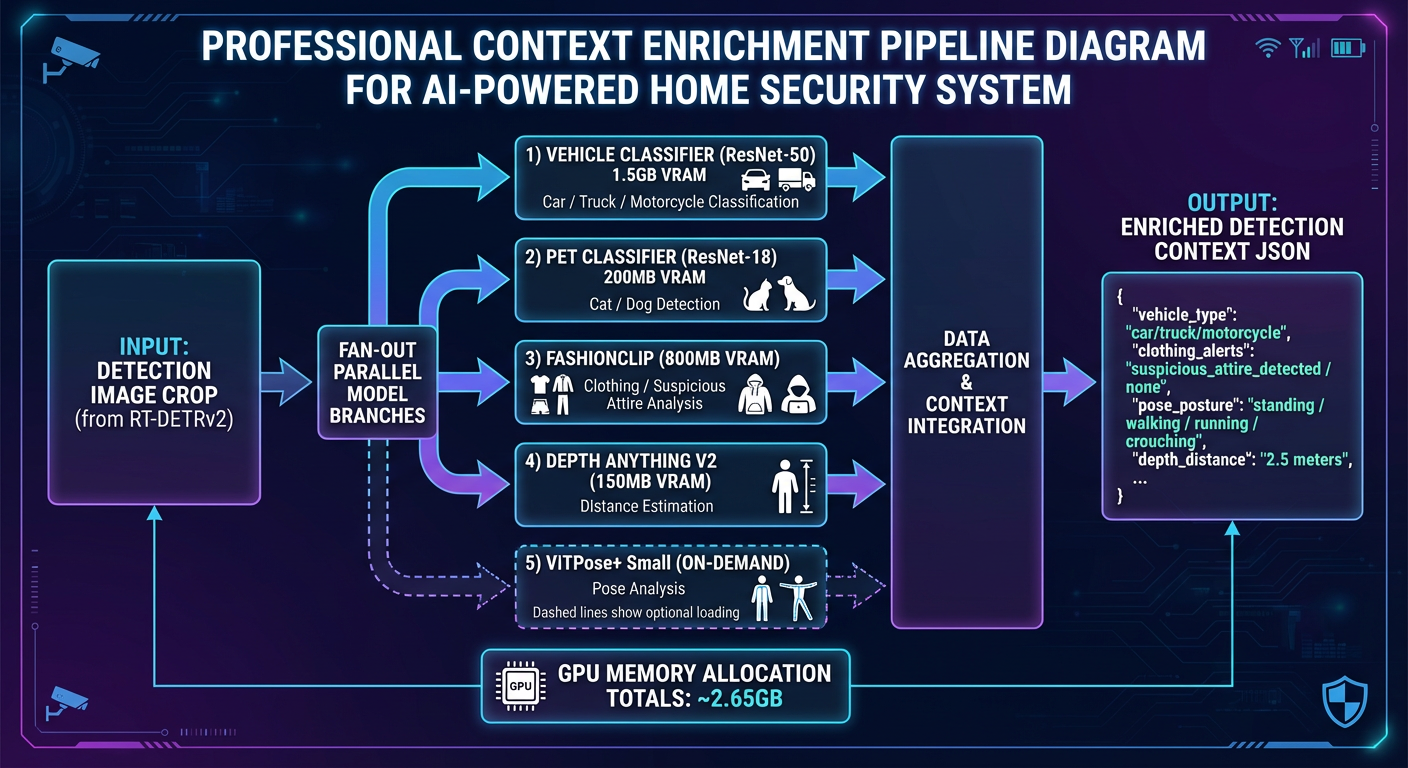
Context enrichment pipeline showing how detection data flows through zone analysis, baseline comparison, and cross-camera correlation.
Service Endpoints
| Router | Endpoint | Purpose |
|---|---|---|
/yolo26 | GET /health | Health check |
/yolo26 | POST /detect | Object detection |
/yolo26 | POST /detect/batch | Batch detection |
/yolo26 | POST /segment | Segmentation |
/florence | POST /extract, /ocr, /dense-caption | Vision-language |
/clip | POST /embed, /similarity, /anomaly-score | Embeddings |
/enrichment | POST /enrich, /vehicle-classify, /clothing-classify | Heavy enrichment |
/enrich-lt | POST /pose-analyze, /threat-detect, /person-reid | Light enrichment |
ai-llm :8091 | GET /health | Health check |
ai-llm :8091 | POST /completion | Text completion |
All /yolo26, /florence, /clip, /enrichment and /enrich-lt paths are prefixed with the router name and served on AI_GATEWAY_PORT (default 8090).
Expected Resource Usage
| Container | VRAM (resident) | GPU | Notes |
|---|---|---|---|
ai-llm | ~14.7GB | GPU_LLM (0) | Nemotron-3-Nano-30B Q4_K_M |
ai-gateway | ~4GB base, ~6GB peak | GPU_AI_SERVICES (1) | YOLO26 + Florence-2 + SigLIP 2 resident; enrichment loads on demand |
See GPU Setup for the full per-model VRAM breakdown.
Next Steps
- AI GHCR Deployment - Deploy AI services from GHCR
- AI Troubleshooting - Common issues and solutions
- AI Performance - Performance tuning
- AI TLS - Secure communications
See Also
- GPU Setup - GPU driver and container configuration
- AI Issues (Troubleshooting) - Detailed problem-solving guide
- AI Configuration - Environment variables