GPU Setup Guide
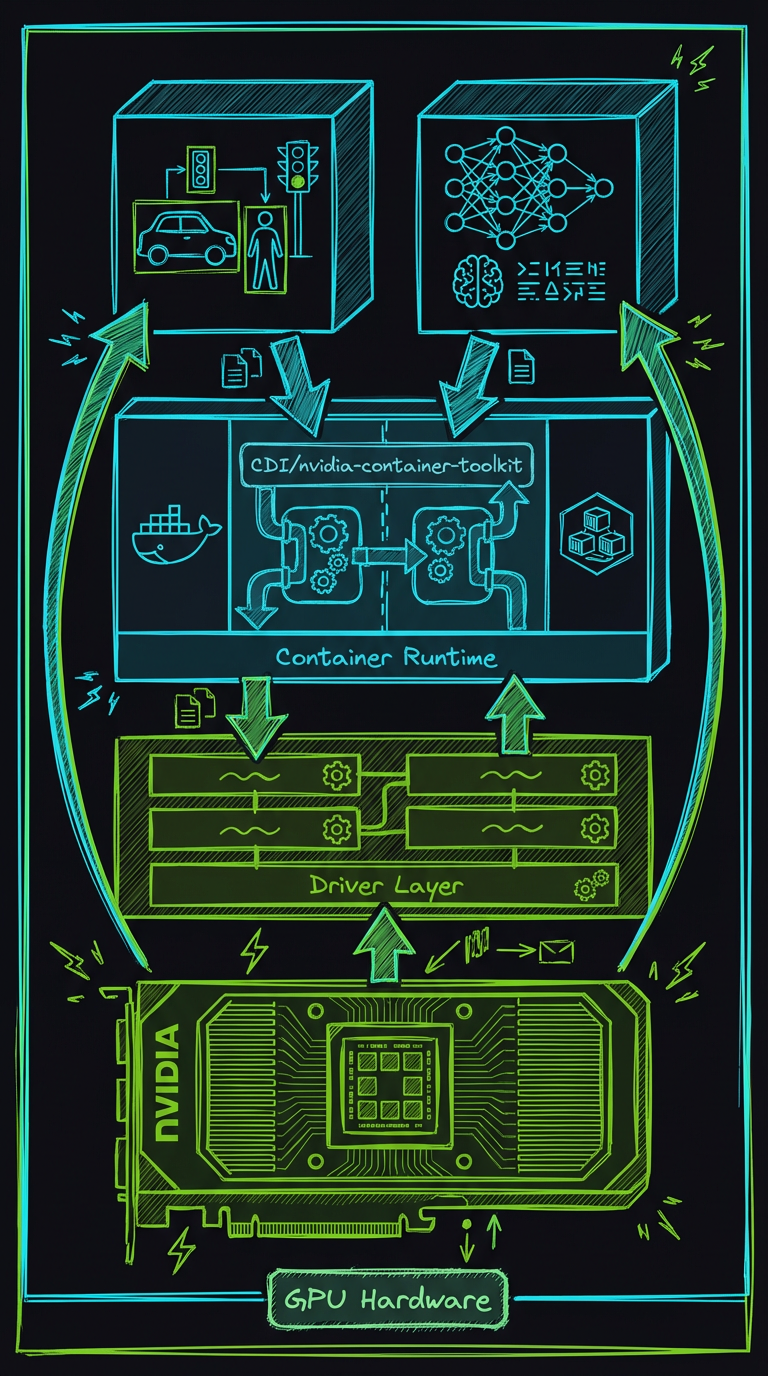
AI-generated visualization of GPU container architecture showing NVIDIA GPU, driver layer, container runtime, and AI services.
Complete guide to configuring NVIDIA GPUs for container-based AI inference.
Time to read: ~15 min Prerequisites: Linux system with NVIDIA GPU
Overview
Home Security Intelligence uses GPU acceleration for AI inference. The core, always-on services are:
| Service | Purpose | VRAM Usage | Inference Time |
|---|---|---|---|
| YOLO26 | Object detection | ~4GB | 30-50ms |
| Nemotron-3-Nano-30B | Risk analysis (LLM) | ~14.7GB (prod) | 2-5s |
| Nemotron Mini 4B | Risk analysis (LLM) | ~3GB (dev) | 2-5s |
| Total (prod) | ~19GB |
Additional optional AI services (e.g. Florence-2, CLIP, Enrichment) may also use GPU, depending on your deployment and feature toggles. This guide covers the complete setup from bare metal to working GPU inference.
1. Prerequisites
Hardware Requirements
| Component | Minimum | Recommended |
|---|---|---|
| GPU | NVIDIA 8GB VRAM | NVIDIA 12GB+ VRAM |
| CUDA CC | 7.0+ | 7.5+ |
Supported GPUs:
- RTX 20xx series (2060, 2070, 2080)
- RTX 30xx series (3060, 3070, 3080, 3090)
- RTX 40xx series (4060, 4070, 4080, 4090)
- RTX A-series workstation GPUs (A2000, A4000, A5500, A6000)
- Tesla/V100/A100 datacenter GPUs
Not supported: AMD GPUs, Intel GPUs, Apple Silicon
Software Requirements
| Component | Minimum Version | Recommended |
|---|---|---|
| NVIDIA Driver | 535+ | 550+ |
| CUDA | 11.8 | 12.x |
| NVIDIA Container Toolkit | 1.14+ | Latest |
| Docker Engine or Podman | 20.10+ / 4.0+ | Latest |
2. Installing NVIDIA Drivers
GPU Driver Installation Workflow
flowchart TD
    Start([Start GPU Setup]) --> Check{nvidia-smi<br/>works?}

    Check -->|Yes| VerifyVersion{Driver >= 535?}
    Check -->|No| DetectOS{Detect OS}

    VerifyVersion -->|Yes| ToolkitCheck{Container Toolkit<br/>Installed?}
    VerifyVersion -->|No| DetectOS

    DetectOS -->|Ubuntu/Debian| UbuntuInstall["sudo apt update<br/>sudo apt install nvidia-driver-550"]
    DetectOS -->|Fedora/RHEL| FedoraInstall["sudo dnf install akmod-nvidia<br/>sudo akmods --force"]

    UbuntuInstall --> Reboot([Reboot Required])
    FedoraInstall --> Reboot

    Reboot --> VerifyDriver{nvidia-smi<br/>works?}
    VerifyDriver -->|Yes| ToolkitCheck
    VerifyDriver -->|No| Troubleshoot[Check secure boot,<br/>kernel modules]

    ToolkitCheck -->|Yes| ConfigureRuntime{Runtime<br/>Configured?}
    ToolkitCheck -->|No| InstallToolkit["Install nvidia-container-toolkit"]

    InstallToolkit --> ConfigureRuntime

    ConfigureRuntime -->|Docker| DockerConfig["nvidia-ctk runtime configure --runtime=docker<br/>systemctl restart docker"]
    ConfigureRuntime -->|Podman| PodmanConfig["nvidia-ctk cdi generate<br/>--output=/etc/cdi/nvidia.yaml"]

    DockerConfig --> TestContainer{"docker run --gpus all<br/>nvidia-smi"}
    PodmanConfig --> TestContainer2{"podman run<br/>--device nvidia.com/gpu=all<br/>nvidia-smi"}

    TestContainer -->|Success| Done([GPU Ready for AI Services])
    TestContainer -->|Fail| Troubleshoot
    TestContainer2 -->|Success| Done
    TestContainer2 -->|Fail| Troubleshoot

    Troubleshoot --> Check

    style Start fill:#e1f5fe
    style Done fill:#c8e6c9
    style Reboot fill:#fff3e0
    style Troubleshoot fill:#ffcdd2
Check Current Installation
Expected output:
+-----------------------------------------------------------------------------------------+
| NVIDIA-SMI 550.54.15              Driver Version: 550.54.15      CUDA Version: 12.4     |
|-----------------------------------------+------------------------+----------------------+
| GPU  Name                 Persistence-M | Bus-Id          Disp.A | Volatile Uncorr. ECC |
| Fan  Temp   Perf          Pwr:Usage/Cap |           Memory-Usage | GPU-Util  Compute M. |
|=========================================+========================+======================|
|   0  NVIDIA RTX A5500               Off | 00000000:01:00.0  Off |                  Off |
| 30%   42C    P8              23W / 230W |       1MiB / 24564MiB |      0%      Default |
+-----------------------------------------+------------------------+----------------------+
If nvidia-smi is not found, install drivers below.
Ubuntu/Debian
# Add NVIDIA package repository
sudo apt update
sudo apt install -y software-properties-common
sudo add-apt-repository -y ppa:graphics-drivers/ppa
sudo apt update

# Install driver (adjust version as needed)
sudo apt install -y nvidia-driver-550

# Reboot required
sudo reboot
Verify after reboot:
Fedora/RHEL
# Enable RPM Fusion repository
sudo dnf install -y \
  https://download1.rpmfusion.org/free/fedora/rpmfusion-free-release-$(rpm -E %fedora).noarch.rpm \
  https://download1.rpmfusion.org/nonfree/fedora/rpmfusion-nonfree-release-$(rpm -E %fedora).noarch.rpm

# Install NVIDIA driver
sudo dnf install -y akmod-nvidia xorg-x11-drv-nvidia-cuda

# Wait for kernel module to build (may take several minutes)
sudo akmods --force

# Reboot required
sudo reboot
Verify after reboot:
Verify CUDA Installation
# Check CUDA version (shown in nvidia-smi output)
nvidia-smi | grep "CUDA Version"

# Optional: Install CUDA toolkit for development
# Ubuntu/Debian
sudo apt install -y nvidia-cuda-toolkit

# Fedora
sudo dnf install -y cuda
3. Installing NVIDIA Container Toolkit
The NVIDIA Container Toolkit enables GPU access from containers. It works with both Docker and Podman.
Ubuntu/Debian (Docker)
# Add NVIDIA container toolkit repository
distribution=$(. /etc/os-release; echo $ID$VERSION_ID)
curl -fsSL https://nvidia.github.io/libnvidia-container/gpgkey | \
  sudo gpg --dearmor -o /usr/share/keyrings/nvidia-container-toolkit-keyring.gpg

curl -s -L https://nvidia.github.io/libnvidia-container/$distribution/libnvidia-container.list | \
  sed 's#deb https://#deb [signed-by=/usr/share/keyrings/nvidia-container-toolkit-keyring.gpg] https://#g' | \
  sudo tee /etc/apt/sources.list.d/nvidia-container-toolkit.list

# Install toolkit
sudo apt update
sudo apt install -y nvidia-container-toolkit

# Configure Docker runtime
sudo nvidia-ctk runtime configure --runtime=docker
sudo systemctl restart docker

# Verify installation
docker run --rm --gpus all nvidia/cuda:12.0-base-ubuntu22.04 nvidia-smi
Expected output: Same nvidia-smi output as on host.
Fedora/RHEL (Docker)
# Add NVIDIA container toolkit repository
distribution=$(. /etc/os-release; echo $ID$VERSION_ID)
curl -s -L https://nvidia.github.io/libnvidia-container/$distribution/libnvidia-container.repo | \
  sudo tee /etc/yum.repos.d/nvidia-container-toolkit.repo

# Install toolkit
sudo dnf install -y nvidia-container-toolkit

# Configure Docker runtime
sudo nvidia-ctk runtime configure --runtime=docker
sudo systemctl restart docker

# Verify installation
docker run --rm --gpus all nvidia/cuda:12.0-base-ubuntu22.04 nvidia-smi
Podman (Container Device Interface)
Podman uses CDI (Container Device Interface) instead of the Docker runtime hook.
# Install NVIDIA Container Toolkit (same as above)
# Ubuntu/Debian
sudo apt install -y nvidia-container-toolkit

# Fedora
sudo dnf install -y nvidia-container-toolkit

# Generate CDI specification
sudo nvidia-ctk cdi generate --output=/etc/cdi/nvidia.yaml

# Verify CDI spec was created
ls -la /etc/cdi/nvidia.yaml

# Verify Podman can see the GPU
podman run --rm --device nvidia.com/gpu=all nvidia/cuda:12.0-base-ubuntu22.04 nvidia-smi
For rootless Podman:
# Generate CDI spec in user directory
mkdir -p ~/.config/cdi
nvidia-ctk cdi generate --output=$HOME/.config/cdi/nvidia.yaml

# Verify
podman run --rm --device nvidia.com/gpu=all nvidia/cuda:12.0-base-ubuntu22.04 nvidia-smi
4. Container GPU Configuration
Docker Compose (docker-compose.prod.yml)
The project's production compose file already includes GPU configuration:
Excerpt from docker-compose.prod.yml (only the GPU parts):
services:
  ai-gateway:
    devices:
      - nvidia.com/gpu=all # all /dev/nvidiaN nodes must exist
    environment:
      - CUDA_VISIBLE_DEVICES=${GPU_AI_SERVICES:-1} # then restrict inside
    deploy:
      resources:
        reservations:
          devices:
            - driver: nvidia
              device_ids: ['${GPU_AI_SERVICES:-1}']
              capabilities: [gpu]

  ai-llm:
    devices:
      - nvidia.com/gpu=${GPU_LLM:-0}
    environment:
      - CUDA_VISIBLE_DEVICES=${GPU_LLM:-0}
    deploy:
      resources:
        reservations:
          devices:
            - driver: nvidia
              device_ids: ['${GPU_LLM:-0}']
              capabilities: [gpu]
Key settings:
| Setting | Value | Description |
|---|---|---|
driver | nvidia | Use NVIDIA runtime |
device_ids | … | Specific GPU indices (use count: all for every GPU) |
capabilities | [gpu] | Request GPU compute capability |
Podman Compose (CDI devices)
Podman rootless GPU access goes through CDI. The gateway passes all GPUs and then narrows with CUDA_VISIBLE_DEVICES, because nvidia.com/gpu=N alone creates only /dev/nvidiaN and CUDA expects /dev/nvidia0 for the first visible device:
services:
  ai-gateway:
    devices:
      - nvidia.com/gpu=all
    environment:
      - CUDA_VISIBLE_DEVICES=${GPU_AI_SERVICES:-1}

  ai-llm:
    devices:
      - nvidia.com/gpu=${GPU_LLM:-0}
Environment Variables
CUDA environment variables that may be useful:
# Force specific GPU (0-indexed)
CUDA_VISIBLE_DEVICES=0

# Enable TensorFloat-32 (faster on Ampere+)
NVIDIA_TF32_OVERRIDE=1

# Memory allocation strategy
PYTORCH_CUDA_ALLOC_CONF=max_split_size_mb:512
5. VRAM Management
Per-Service Requirements
Two containers touch the GPUs in production. Figures are from the model manifest (models.yml vram_mb) plus per-process CUDA context overhead.
| Container | GPU | What is resident | Base VRAM | Peak VRAM |
|---|---|---|---|---|
ai-llm | GPU_LLM (0) | Nemotron-3-Nano-30B Q4_K_M | ~14.7GB | ~15.5GB |
ai-gateway | GPU_AI_SERVICES (1) | YOLO26 (~2GB), Florence-2-base (~1.5GB), SigLIP 2 (~200MB), enrichment models on demand | ~4GB | ~6GB |
| CUDA context | each | Per-process overhead | ~300MB | ~500MB |
With the default two-GPU split the peaks land on separate cards: GPU 0 needs ~16GB, GPU 1 needs ~6GB. On a single GPU you need both sums (~22GB) plus headroom, which is why GPU_LAYERS=auto offloads LLM layers to CPU on 8-12GB cards.
Monitoring VRAM Usage
# Real-time monitoring
watch -n 1 nvidia-smi

# Detailed process view
nvidia-smi --query-compute-apps=pid,process_name,used_memory --format=csv

# Memory usage over time
nvidia-smi dmon -s m -d 1
Expected output during normal operation:
+-----------------------------------------------------------------------------------------+
| Processes:                                                                              |
|  GPU   GI   CI        PID   Type   Process name                              GPU Memory |
|        ID   ID                                                               Usage      |
|=========================================================================================|
|    0   N/A  N/A     12345      C   python                                      3800MiB |
|    0   N/A  N/A     12346      C   llama-server                                2900MiB |
+-----------------------------------------------------------------------------------------+
Handling VRAM Exhaustion
Symptoms:
RuntimeError: CUDA out of memory- Services crash during model loading
- Slow inference (CPU fallback)
Solutions:
- Check what's using VRAM:
- Kill competing processes:
- Restart AI services:
- Use smaller model quantization:
Point LLM_MODEL_PATH in .env at a Q4_K_S GGUF instead of Q4_K_M (saves ~500MB).
-
Close GPU-accelerated applications:
-
Web browsers with hardware acceleration
- Desktop compositors (Wayland/X11)
- Other ML/AI workloads
6. Multi-GPU Setup (Optional)
If you have multiple GPUs, you can dedicate specific GPUs to specific services.
List Available GPUs
Example output:
Assign GPUs to Services
There are only two GPU consumers, so placement is two .env variables — no compose edit needed:
# .env
GPU_LLM=0          # GPU for ai-llm (Nemotron) — pick the high-VRAM card
GPU_AI_SERVICES=1  # GPU for ai-gateway (YOLO26, Florence-2, CLIP, enrichment)
docker-compose.prod.yml threads both into devices:, CUDA_VISIBLE_DEVICES and deploy.resources.reservations.devices[].device_ids, so changing .env and recreating the containers is the whole procedure:
To run both on one GPU, set GPU_LLM and GPU_AI_SERVICES to the same index and lower GPU_LAYERS so the LLM offloads part of itself to CPU.
Per-model execution mode inside the gateway comes from models.yml: each model's triton_kind (KIND_GPU, KIND_CPU or KIND_MODEL) is written into its Triton config.pbtxt instance_group at container start by ai/gateway/patch_triton_configs.py, and any model with a device_env_var (for example FLORENCE_DEVICE) gets that variable exported by ai/gateway/entrypoint.sh. Everything runs on the single GPU named by GPU_AI_SERVICES unless you change one of those.
Native (host) services:
# Terminal 1: gateway/detector on GPU 0
CUDA_VISIBLE_DEVICES=0 ./ai/start_detector.sh

# Terminal 2: Nemotron on GPU 1
CUDA_VISIBLE_DEVICES=1 ./ai/start_llm.sh
Load Balancing Considerations
For high-throughput deployments:
- Raise the Triton
instance_groupcount for a model inmodels.ymlto run several copies on one GPU - Use a load balancer (nginx, HAProxy) to distribute requests
- Monitor per-GPU utilization to balance load
7. Troubleshooting
"No NVIDIA GPU detected"
Symptoms:
nvidia-smireturns "command not found" or "no devices found"- Health check shows
"cuda_available": false
Diagnosis:
# Check if GPU hardware is visible
lspci | grep -i nvidia

# Check if driver module is loaded
lsmod | grep nvidia

# Check driver version
cat /proc/driver/nvidia/version
Solutions:
- Install/reinstall driver (see Section 2)
- Reboot after driver installation
- Check secure boot: Some systems require signing NVIDIA modules
"CUDA out of memory"
Symptoms:
- Error during model loading or inference
- Service exits immediately after start
Diagnosis:
# Check current VRAM usage
nvidia-smi

# Check total VRAM available
nvidia-smi --query-gpu=memory.total --format=csv,noheader
Solutions:
- Ensure 8GB+ VRAM available
- Close other GPU applications
- Restart services to release leaked memory
- Use smaller models (Q4_K_S quantization)
Container Can't Access GPU
Symptoms:
nvidia-smiworks on host but not in container- Error: "Failed to initialize NVML"
- Error: "GPU device not found"
Diagnosis:
# Check Docker/Podman GPU support
docker info 2>/dev/null | grep -i runtime
podman info 2>/dev/null | grep -i runtime

# Check CDI configuration (Podman)
cat /etc/cdi/nvidia.yaml 2>/dev/null | head -20
Solutions for Docker:
# Reinstall and configure toolkit
sudo nvidia-ctk runtime configure --runtime=docker
sudo systemctl restart docker

# Verify
docker run --rm --gpus all nvidia/cuda:12.0-base-ubuntu22.04 nvidia-smi
Solutions for Podman:
# Regenerate CDI specification
sudo nvidia-ctk cdi generate --output=/etc/cdi/nvidia.yaml

# For rootless Podman
mkdir -p ~/.config/cdi
nvidia-ctk cdi generate --output=$HOME/.config/cdi/nvidia.yaml

# Verify
podman run --rm --device nvidia.com/gpu=all nvidia/cuda:12.0-base-ubuntu22.04 nvidia-smi
Driver/Toolkit Version Mismatch
Symptoms:
- Error: "CUDA driver version is insufficient"
- Error: "version mismatch between driver and CUDA runtime"
Diagnosis:
# Check driver CUDA version
nvidia-smi | grep "CUDA Version"

# Check toolkit CUDA version
nvcc --version
Solutions:
- Update driver to match CUDA requirements:
| CUDA Version | Minimum Driver |
|---|---|
| 12.4 | 550.54+ |
| 12.2 | 535.54+ |
| 11.8 | 520.61+ |
- Or use containers with matching CUDA version:
Slow Inference (CPU Fallback)
Symptoms:
- Detection takes >200ms instead of 30-50ms
- LLM responses take >30s instead of 2-5s
- GPU utilization at 0%
Diagnosis:
# Confirm the Triton model is loaded and served from the GPU
curl http://localhost:8090/yolo26/health | jq .
# {"status":"healthy","model":"yolo26","model_loaded":true}

# Confirm the model registered as KIND_GPU (not KIND_CPU) — Triton's own
# control port is container-internal 8000; only its metrics port 8002 is published
podman exec ai-gateway curl -s http://localhost:8000/v2/models/yolo26/config | jq .instance_group
curl -s http://localhost:8002/metrics | grep -c triton_   # published metrics port

# Check GPU utilization during inference
nvidia-smi -l 1
Solutions:
- Verify CUDA in container:
- Rebuild llama.cpp with CUDA:
cd /tmp
git clone https://github.com/ggerganov/llama.cpp
cd llama.cpp
make LLAMA_CUDA=1 -j$(nproc)
sudo install -m 755 llama-server /usr/local/bin/
- Check the
--n-gpu-layersvalue:
ai/nemotron/Dockerfile passes --n-gpu-layers ${GPU_LAYERS}. .env defaults GPU_LAYERS=auto (llama.cpp picks the count that fits free VRAM); set a number such as 999 to force every layer onto the GPU.
Quick Reference
Verification Commands
# Driver installed?
nvidia-smi

# Container toolkit working?
docker run --rm --gpus all nvidia/cuda:12.0-base-ubuntu22.04 nvidia-smi
# or for Podman:
podman run --rm --device nvidia.com/gpu=all nvidia/cuda:12.0-base-ubuntu22.04 nvidia-smi

# AI services healthy?
curl http://localhost:8090/health | jq .  # ai-gateway (Triton aggregate)
curl http://localhost:8091/health         # Nemotron

# VRAM usage?
nvidia-smi --query-gpu=memory.used,memory.total --format=csv
Key Files
| File | Purpose |
|---|---|
/etc/cdi/nvidia.yaml | Podman CDI specification |
~/.config/cdi/nvidia.yaml | Rootless Podman CDI spec |
/etc/docker/daemon.json | Docker runtime configuration |
docker-compose.prod.yml | Production compose with GPU |
/proc/driver/nvidia/version | Installed driver version |
Minimum VRAM Checklist
Before starting services, ensure:
- [ ] At least 8GB VRAM available
- [ ] No other GPU processes consuming memory
- [ ] Driver version 535+ installed
- [ ] Container toolkit configured
- [ ] Test container GPU access succeeds
Next Steps
- AI Overview - AI services architecture
- AI Installation - Set up AI services
- AI Services - Start and verify AI services
See Also
- GPU Troubleshooting - Detailed GPU problem solving
- AI Performance - Optimize inference performance
- Detection Service - How YOLO26 uses the GPU