Troubleshooting Index
Your first stop when something goes wrong. Find your symptom, get to the solution fast.
Time to read: ~5 min Prerequisites: None
Quick Self-Check Before Troubleshooting
Before diving into specific issues, run these quick checks:
# 1. System health (is everything running?)
curl -s http://localhost:8000/api/system/health | jq .

# 2. Service status (are all containers up?)
docker compose -f docker-compose.prod.yml ps

# 3. GPU status (is the GPU available?)
nvidia-smi

# 4. Recent logs (any obvious errors?)
docker compose -f docker-compose.prod.yml logs --tail=50 backend
If all services show "healthy" and containers are running, proceed to the specific symptom below.
Fast Triage Flow (Health → Fix)
Use this when you're not sure where to start.
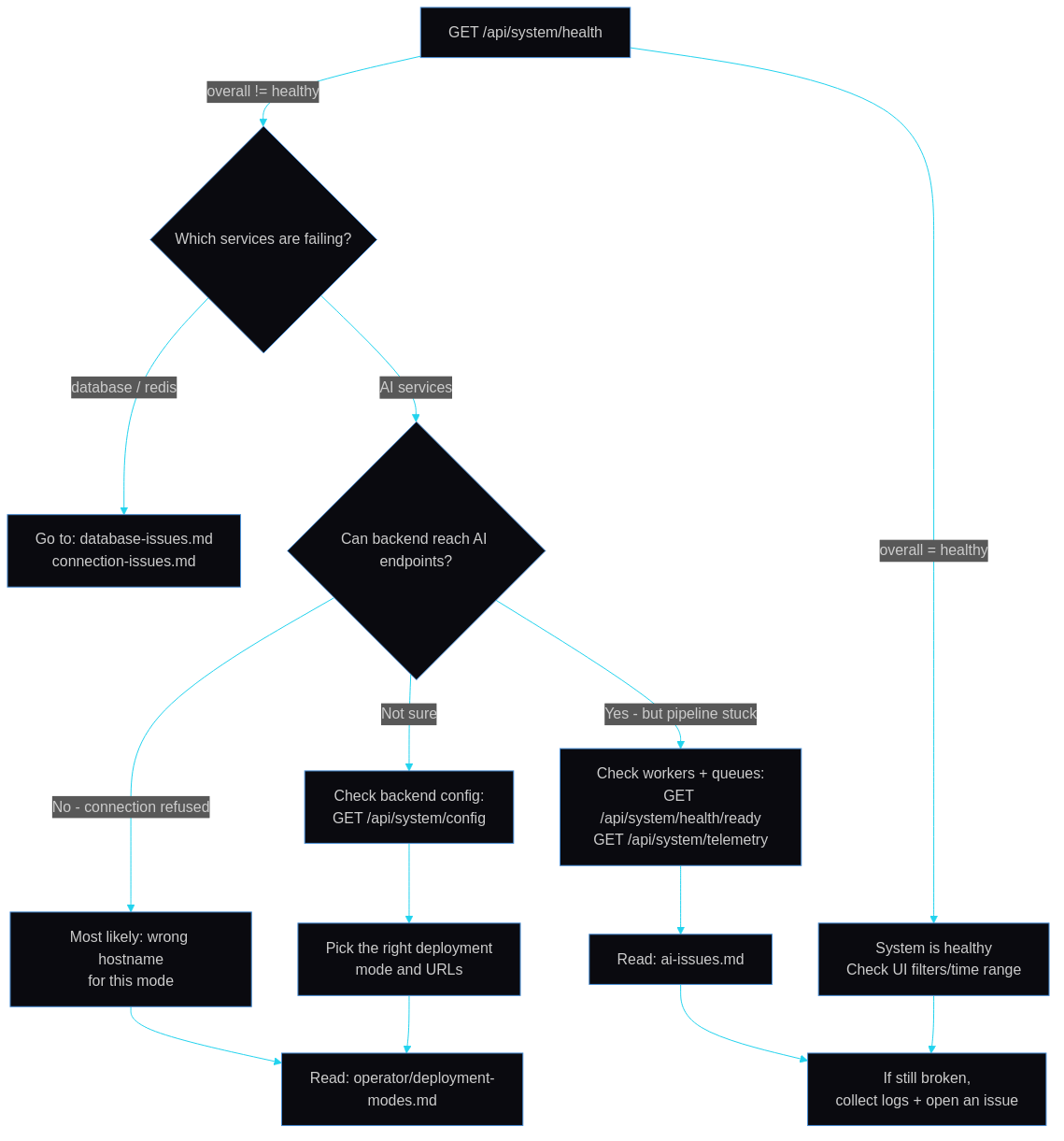
Decision tree for diagnosing system health issues: Start with the health check endpoint, then follow the path based on which services are failing to quickly identify and resolve problems.
Symptom Quick Reference Table
| Symptom | Likely Cause | Quick Fix | Detailed Guide |
|---|---|---|---|
| Dashboard shows no events | File watcher not running or AI services down | Restart backend | Events Not Appearing |
| Risk gauge stuck at 0 | Nemotron service unavailable | Start Nemotron LLM | AI Issues |
| Camera shows offline | Camera not uploading or folder path wrong | Check FTP and folder config | Camera Offline |
| AI not responding | Services not started or port conflicts | Start AI services | AI Not Working |
| WebSocket disconnected | Backend down or network issues | Check backend health | WebSocket Issues |
| High CPU/memory usage | Too many images or memory leak | Check queue sizes | Performance Issues |
| Disk space running out | Retention not configured | Run cleanup | Disk Space Issues |
| Slow detection response | GPU not being used | Check CUDA availability | Slow Performance |
| "Connection refused" errors | Service not running | Start the service | Connection Issues |
| CORS errors in browser | Frontend/backend URL mismatch | Update CORS_ORIGINS | CORS Errors |
Dashboard Shows No Events
What You See
- Empty activity feed
- No recent events in timeline
- Risk gauge may be at 0 or stale
Quick Diagnosis
# Check if events exist in database
curl -s http://localhost:8000/api/events?limit=5 | jq '.pagination.total'

# Check pipeline status
curl -s http://localhost:8000/api/system/pipeline | jq .
Possible Causes (Most Likely First)
- File watcher not running - Images not being picked up
- AI services not running - Detections not being created
- No images uploaded - Cameras not sending images
- Batch not completing - Detections queued but not analyzed
Solutions
1. Check file watcher status:
curl -s http://localhost:8000/api/system/health/ready | jq '.workers[] | select(.name | test("file_watcher|detection"))'
If not running, restart backend: docker compose -f docker-compose.prod.yml restart backend
2. Verify images are being uploaded:
3. Check AI service health:
curl http://localhost:8090/yolo26/health     # YOLO26 (AI gateway router)
curl http://localhost:8091/health            # Nemotron (ai-llm container)
curl http://localhost:8090/florence/health   # Florence-2 (optional router)
curl http://localhost:8090/clip/health       # CLIP (optional router)
curl http://localhost:8090/enrichment/health # Heavy enrichment (optional router)
curl http://localhost:8090/enrich-lt/health  # Light enrichment (optional router)
4. Check queue depths:
If queues are growing but not processing, AI services may be down.
See: Connection Issues, AI Issues
Risk Gauge Stuck at 0
What You See
- Dashboard risk gauge shows 0 or minimal value
- Events exist but have null risk scores
- "Analyzing..." spinner never completes
Quick Diagnosis
# Check recent events for risk scores
curl -s http://localhost:8000/api/events?limit=3 | jq '.items[].risk_score'

# Check Nemotron health
curl -s http://localhost:8091/health
Possible Causes
- Nemotron service not running - Most common cause
- Nemotron timeout - Model too slow or overloaded
- LLM response parsing failure - Invalid JSON from model
Solutions
1. Start Nemotron if not running:
2. Check Nemotron logs:
docker compose -f docker-compose.prod.yml logs -f ai-llm
# Host-run ./ai/start_nemotron.sh writes /tmp/nemotron.log;
# ./ai/start_llm.sh logs to its terminal
3. Increase timeout if needed:
4. Test Nemotron directly:
curl -X POST http://localhost:8091/completion \
  -H "Content-Type: application/json" \
  -d '{"prompt": "Say hello", "max_tokens": 20}'
See: AI Issues - Analysis Failing
Camera Shows Offline
What You See
- Camera status indicator shows offline/error
- No new detections from specific camera
- last_seen_at timestamp is stale
Quick Diagnosis
# Check camera status in database
curl -s http://localhost:8000/api/cameras | jq '.items[] | {id, name, status, last_seen_at}'

# Check if images exist in camera folder
ls -lt /export/foscam/<camera_name>/ | head -5
Possible Causes
- Camera not FTP uploading - Network or camera config issue
- Wrong folder path - Camera registered with incorrect path
- File permissions - Backend cannot read camera folder
- Camera hardware issue - Camera offline or rebooting
Solutions
1. Verify camera is uploading:
2. Check folder path in camera settings:
3. Fix permissions:
4. Check FTP server status:
See: Connection Issues - File Watcher
AI Not Working
What You See
- Health check shows AI services as unhealthy
- Error: "YOLO26 service connection refused"
- Error: "Nemotron service connection refused"
- No detections being created
Quick Diagnosis
# Overall AI status
curl -s http://localhost:8000/api/system/health | jq '.services.ai'

# Individual service checks (production topology: Triton gateway + LLM container)
curl http://localhost:8090/yolo26/health  # Should return {"status": "healthy", ...}
curl http://localhost:8091/health         # Should return {"status": "ok"}
Possible Causes (Most Likely First)
- AI containers not running -
ai-gatewayandai-llmstart with the stack - Port conflicts - Something else using 8090/8091
- GPU not available - CUDA not initialized (see Triton Rootless CUDA under rootless Podman)
- Model files missing - Models not downloaded
Solutions
1. Start AI services:
# Production (containers)
docker compose -f docker-compose.prod.yml up -d ai-gateway ai-llm

# Host-run development (no unified wrapper script exists)
./ai/start_detector.sh  # Standalone YOLO26 server (PORT default 8090)
./ai/start_llm.sh       # Host-run Nemotron dev LLM on 8091
2. Check for port conflicts:
3. Verify CUDA:
4. Download models if missing:
./ai/download_models.sh
# Nemotron lands in ${AI_MODELS_PATH:-/export/ai_models}/nemotron/nemotron-3-nano-30b-a3b-q4km/
# (Nemotron-3-Nano-30B-A3B-Q4_K_M.gguf, ~14.7GB); the rest go to model-zoo/
5. Check AI service logs:
docker compose -f docker-compose.prod.yml logs --tail=100 ai-gateway ai-llm
# Host-run: start_nemotron.sh writes /tmp/nemotron.log; start_detector.sh/start_llm.sh
# log to their terminal
See: AI Issues, GPU Issues
WebSocket Disconnected
What You See
- Dashboard shows "Disconnected" status
- Real-time updates stop working
- Events appear in timeline but feed not updating
- Browser console shows WebSocket errors
Quick Diagnosis
# Test WebSocket endpoint
websocat ws://localhost:8000/ws/events

# Check backend is responding
curl http://localhost:8000/api/system/health
Possible Causes
- Backend not running - Container down
- Proxy/firewall issues - WebSocket blocked
- Idle timeout - Connection closed due to inactivity
- Rate limiting - Too many reconnection attempts
Solutions
1. Restart backend:
2. Check backend logs:
3. Adjust idle timeout:
4. Check live WebSocket connections:
5. Clear browser cache and reload
See: Connection Issues - WebSocket
High CPU/Memory Usage
What You See
- System becomes slow or unresponsive
- Container restarts due to OOM
- Backend logs show high latency
Quick Diagnosis
# Container resource usage
docker stats

# Queue backlogs
curl -s http://localhost:8000/api/system/telemetry | jq '.queues'

# DLQ size
curl -s http://localhost:8000/api/dlq/stats
Possible Causes
- Queue backlog - Images piling up faster than processed
- Too many cameras - Overloading the system
- Memory leak - Long-running process issue
- Insufficient resources - Container limits too low
Solutions
1. Check and clear queues if backed up:
# View queue sizes (Redis Streams mode is the default — USE_REDIS_STREAMS=true)
redis-cli xlen detections:stream
redis-cli xlen analysis:stream

# If severely backed up, you may need to clear
# CAUTION: This loses queued jobs (with consumer groups, delete/recreate the group too)
redis-cli del detections:stream
2. Increase container memory limits:
3. Reduce camera throughput:
- Increase camera upload interval
- Reduce number of active cameras
4. Restart services:
Disk Space Running Out
What You See
- Error: "No space left on device"
- Database operations fail
- Thumbnail generation fails
Quick Diagnosis
# Check disk usage
df -h

# Check storage stats
curl -s http://localhost:8000/api/system/storage | jq .

# Database size
psql -h localhost -U security -d security -c "SELECT pg_size_pretty(pg_database_size('security'));"
Possible Causes
- Retention too long - Default 30 days may be too much
- Cleanup not running - Scheduled cleanup failing
- Thumbnails accumulating - Largest storage consumer
- Camera images not cleaned - Original images retained
Solutions
1. Run immediate cleanup:
# Preview first
curl -s -X POST "http://localhost:8000/api/system/cleanup?dry_run=true" | jq .

# Execute cleanup
curl -X POST http://localhost:8000/api/system/cleanup
2. Reduce retention period:
3. Vacuum PostgreSQL:
4. Enable image deletion (if you have backups): Configure delete_images=True in cleanup service
See: Database Issues - Disk Space
Slow AI Inference
What You See
- Detection takes >100ms (expected: 5-20ms per frame via the gateway's TensorRT engines — see YOLO26 performance)
- LLM responses take >30s (expected: 2-5s)
- Queue backlogs growing
Quick Diagnosis
# Check GPU utilization
nvidia-smi

# Check the gateway reports models ready
curl -s http://localhost:8090/health | jq

# Check pipeline latency
curl -s http://localhost:8000/api/system/pipeline-latency | jq .
Possible Causes
- Running on CPU instead of GPU - Most common
- GPU thermal throttling - Temperature too high
- VRAM exhausted - Too many models loaded
- Other GPU processes - Competing for resources
Solutions
1. Verify GPU is being used:
# tritonserver and llama-server should hold GPU memory
nvidia-smi --query-compute-apps=pid,name,used_memory --format=csv

# A host-run standalone detector reports its device directly
curl -s http://localhost:8095/health | jq '.device'  # "cuda:0" or "cpu"
2. Check temperature:
3. Free GPU memory:
# Restart the AI stack (drops loaded models and re-initialises CUDA)
docker compose -f docker-compose.prod.yml restart ai-gateway ai-llm
See: GPU Issues
CORS Errors in Browser
What You See
- Browser console: "CORS policy blocked"
- API calls work in curl but fail in browser
- Dashboard shows errors loading data
Quick Diagnosis
# Test CORS headers (origin = whatever the browser actually reports, e.g. the Vite dev server)
curl -v -X OPTIONS -H "Origin: https://localhost:8444" \
  http://localhost:8000/api/events 2>&1 | grep -i "access-control"
Solutions
1. Update CORS_ORIGINS in .env (default ships https://localhost:8444 and internal http://frontend:8080):
2. Restart backend after changes:
Emergency Procedures
System Won't Start At All
Symptoms: All services fail to start, immediate crashes
Steps:
- Check Docker is running:
docker info - Check for conflicting containers:
docker ps -a - Remove stuck containers:
docker compose -f docker-compose.prod.yml down -v - Check environment file:
cat .env - Rebuild if needed:
docker compose -f docker-compose.prod.yml build --no-cache - Start with verbose logs:
docker compose -f docker-compose.prod.yml up
Database Corruption Suspected
Symptoms: SQL errors, missing data, inconsistent state
Steps:
- Stop all services:
docker compose -f docker-compose.prod.yml down - Create backup:
pg_dump -h localhost -U security security > backup_emergency.sql - Check for issues:
psql -h localhost -U security -d security -c "\dt" - If corrupted, restore from backup
- As last resort, recreate the database (this project has no Alembic — the schema is created directly from the SQLAlchemy models on next backend start):
Complete Data Loss Recovery
Symptoms: Database empty, no events, no history
Steps:
- Check if data exists but service cannot connect
- Check Docker volumes:
docker volume ls - Restore from backup if available:
- If no backup, the system will start fresh when cameras resume uploading
Security Breach Suspected
Symptoms: Unauthorized access, unknown API activity, modified settings
Steps:
- Immediately stop external access
- Check for rejected requests — with
API_KEY_ENABLED=true, calls without a validX-API-Keyheader are refused with401and show up in the backend logs: - Review logs for suspicious activity:
- Rotate API keys if used
- Review CORS origins and network exposure
- Consider enabling
API_KEY_ENABLED=trueif not already
Information to Gather for Bug Reports
If you need to report an issue, collect this information:
# 1. System health summary
curl -s http://localhost:8000/api/system/health | jq . > health.json

# 2. System configuration (REDACT PASSWORDS)
curl -s http://localhost:8000/api/system/config | jq . > config.json

# 3. Recent backend logs
docker compose -f docker-compose.prod.yml logs --tail=200 backend > backend.log

# 4. GPU information
nvidia-smi > gpu.txt

# 5. Container status
docker compose -f docker-compose.prod.yml ps -a > containers.txt

# 6. Queue status
curl -s http://localhost:8000/api/system/telemetry | jq . > telemetry.json

# 7. Environment (REDACT SENSITIVE VALUES)
cat .env | grep -v PASSWORD | grep -v SECRET | grep -v KEY > env_safe.txt
Troubleshooting Detailed Guides
- GPU Issues - CUDA, VRAM, temperature, container GPU access
- Triton Rootless CUDA - ai-gateway cudaGetDeviceCount err=3 in rootless Podman
- Connection Issues - Network, containers, WebSocket, CORS
- AI Issues - YOLO26, Nemotron, pipeline, batch processing
- Database Issues - PostgreSQL connection, migrations, disk space
Getting Help
If you can't resolve an issue:
- Check this index first - Most common problems are covered
- Review specific troubleshooting pages - Detailed solutions for each area
- Search GitHub Issues - Someone may have solved it
- Open a new issue with:
- Clear description of the problem
- Steps to reproduce
- Information gathered (see above)
- What you've already tried
See Also
- AI Troubleshooting (Operator) - Quick AI fixes
- GPU Setup - GPU configuration guide
- Environment Variable Reference - Configuration options
- Glossary - Terms and definitions