Profiling (Pyroscope)
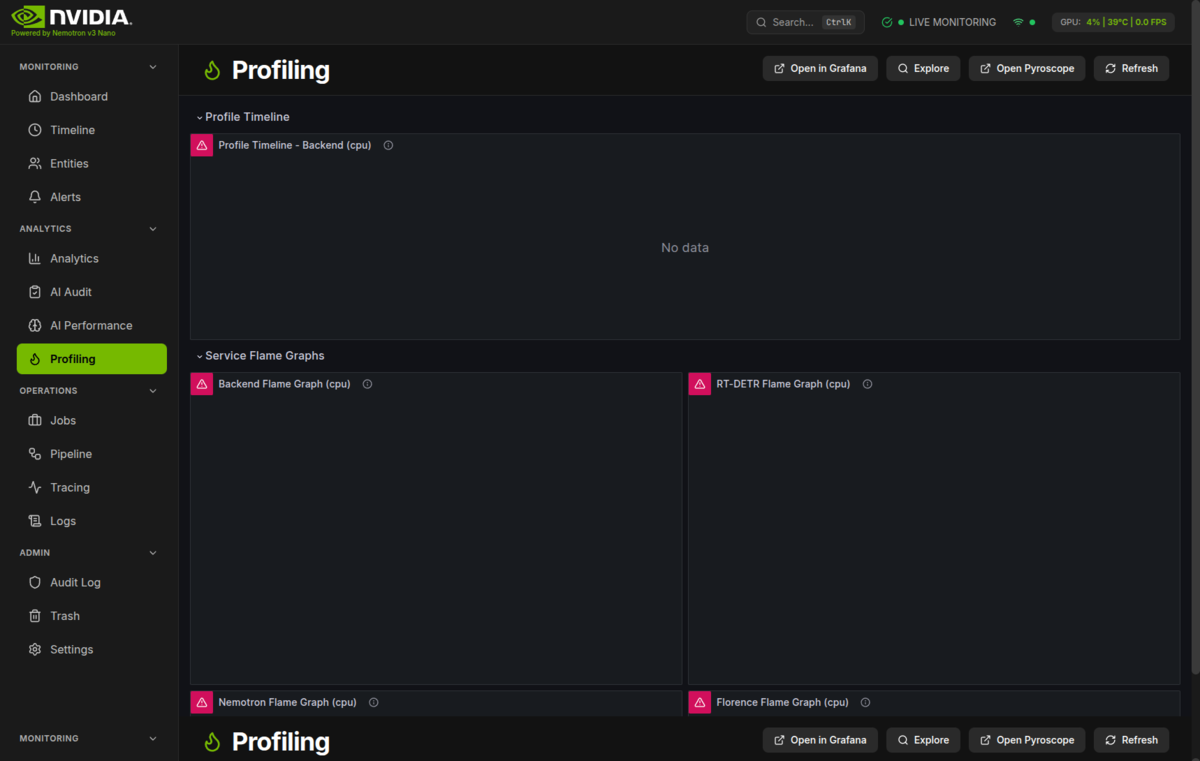
Continuous profiling dashboard for analyzing CPU and memory usage across all services.
What You're Looking At
The Profiling page provides continuous profiling capabilities powered by Pyroscope and visualized through Grafana. This page helps you identify performance bottlenecks, memory leaks, and CPU hotspots in the AI pipeline services.
Layout Overview
+----------------------------------------------------------+
|  HEADER: Flame Icon | "Profiling" | Action Buttons        |
+----------------------------------------------------------+
|                                                          |
|  +----------------------------------------------------+  |
|  |                                                    |  |
|  |           GRAFANA DASHBOARD EMBED                  |  |
|  |                                                    |  |
|  |  +------------+ +------------+ +------------+      |  |
|  |  | Service    | | Profile    | | Time       |      |  |
|  |  | Selector   | | Type       | | Range      |      |  |
|  |  +------------+ +------------+ +------------+      |  |
|  |                                                    |  |
|  |  +------------------------------------------+      |  |
|  |  |                                          |      |  |
|  |  |           FLAME GRAPH                    |      |  |
|  |  |                                          |      |  |
|  |  +------------------------------------------+      |  |
|  |                                                    |  |
|  +----------------------------------------------------+  |
|                                                          |
+----------------------------------------------------------+
The page embeds the HSI Profiling dashboard from Grafana (/grafana/d/hsi-profiling/hsi-profiling), which provides:
- Service Selector - Choose which service to profile (
nemotron-backendvia the Python SDK,ai-llmvia Alloy eBPF,alloyself-profiling) - Profile Type - Switch between CPU and memory profiles
- Time Range - Select the time period to analyze
- Flame Graph - Visual representation of where time/memory is spent
Key Components
Header Controls
| Button | Function |
|---|---|
| Open in Grafana | Opens the full Grafana dashboard in a new tab for advanced features |
| Explore | Opens Grafana Explore with Pyroscope datasource for ad-hoc queries |
| Open Pyroscope | Opens the native Pyroscope UI at localhost:4040 |
| Refresh | Reloads the embedded dashboard |
Flame Graph
The flame graph is the primary visualization for understanding where time or memory is being consumed:
- Width - Represents the proportion of time/memory used by that function
- Depth - Shows the call stack hierarchy (callers on top, callees below)
- Color - Different colors represent different packages or modules
- Hover - Shows detailed information about that function call
Reading the Flame Graph:
| Pattern | Meaning |
|---|---|
| Wide bar at top | High-level function consuming significant resources |
| Wide bar at bottom | Leaf function (actual work) consuming resources |
| Narrow tower | Deep call stack but minimal resource usage |
| Flat top | Most time spent in this specific function |
Profile Types
| Type | Description | Use Case |
|---|---|---|
| CPU | Shows where processing time is spent | Finding slow code paths |
| Memory | Shows where memory is allocated | Finding memory leaks |
| Goroutines | Shows goroutine distribution (Go services) | Finding concurrency issues |
| Mutex | Shows lock contention (Go services) | Finding synchronization bottlenecks |
Service Selection
Profiled today (names as they appear in the selector):
| Service | How it is profiled |
|---|---|
| nemotron-backend | In-process Python SDK (pyroscope-io), enabled by PYROSCOPE_ENABLED=true in compose; CPU at 100 Hz + memory |
| ai-llm | Alloy eBPF native profiling — the container carries labels pyroscope.profile=true / pyroscope.service=ai-llm |
| alloy | Alloy self-profiling |
Other services (gateway, frontend) have no profiler attached yet.
Understanding Profiling Data
CPU Profiling
CPU profiles show where processing time is spent. Look for:
- Wide flames at the bottom - Functions doing actual computation
- Unexpected wide bars - Code paths consuming more CPU than expected
- Third-party libraries - External code that may need optimization or caching
Common CPU Hotspots in AI Pipelines:
| Area | Expected | Potential Issue |
|---|---|---|
| Model inference | High CPU | Normal operation |
| JSON serialization | Low-Medium | Consider caching or binary formats |
| Database queries | Low | Add query optimization/caching |
| Image processing | Medium-High | Consider GPU acceleration |
Memory Profiling
Memory profiles show allocation patterns. Look for:
- Growing allocations - Potential memory leaks
- Large single allocations - May cause GC pressure
- Frequent small allocations - May benefit from pooling
Common Memory Patterns:
| Pattern | Meaning | Action |
|---|---|---|
| Steady flat line | Normal operation | None needed |
| Gradual increase | Potential leak | Investigate retained references |
| Sawtooth pattern | Normal GC behavior | None needed |
| Sudden spikes | Burst allocations | Consider rate limiting |
Correlation with Tracing
Profiling data can be correlated with distributed traces:
- Find a slow trace in the Tracing page
- Note the time range of the slow operation
- Open Profiling and select the same time range
- Identify which code paths consumed the most resources during that period
This helps pinpoint exactly why a specific request was slow.
Settings & Configuration
Grafana URL
The Grafana URL is automatically configured from the backend. If the embedded dashboard fails to load, verify:
- Grafana is running and accessible
- The
grafana_urlconfig setting is correct - Network connectivity between frontend and Grafana
Pyroscope Data Source
The Pyroscope data source is provisioned with Grafana:
# Grafana provisioning (monitoring/grafana/provisioning/datasources/prometheus.yml)
- name: Pyroscope
  uid: pyroscope
  type: grafana-pyroscope-datasource
  url: http://pyroscope:4040
  access: proxy
Retention
Retention is disk/space-driven, configured in monitoring/pyroscope/pyroscope-config.yml:
| Setting | Default | Description |
|---|---|---|
limits block retention | 720h (30d) | Blocks older than this are marked for deletion |
pyroscopedb.min_free_disk_gb | 10 | Oldest blocks deleted when free disk drops below |
PYROSCOPE_SAMPLE_RATE | 100 (backend) / 10 (ai-llm) | CPU samples per second |
Troubleshooting
Dashboard Shows "No Data"
- Check Pyroscope and Alloy are running:
podman ps -a --filter name=pyroscope --filter name=alloy - Verify services are instrumented: Check that services have Pyroscope SDK configured
- Check time range: Ensure the selected time range has profiling data
- Verify datasource: Confirm Pyroscope is configured in Grafana
Flame Graph is Empty
- Select a different service from the dropdown
- Expand the time range
- Check if the service was active during the selected period
- Verify the profile type is appropriate for the service
High Memory Usage in Profiling
Continuous profiling has minimal overhead (typically 1-3%), but:
- Reduce sampling frequency if needed
- Limit the number of profiled services
- Reduce retention period for older data
"Failed to load configuration" Error
The frontend couldn't fetch the Grafana URL from the backend:
- Verify the backend is running
- Check network connectivity
- The dashboard will use
/grafanaas a fallback
Technical Deep Dive
Architecture
flowchart LR
    subgraph Services["Profiled Services"]
        B[nemotron-backend]
        L[ai-llm container]
    end

    subgraph Collection["Data Collection"]
        A[Alloy eBPF]
        P[Pyroscope :4040]
    end

    subgraph Visualization["Visualization"]
        G[Grafana]
        F[Frontend]
    end

    B -->|"pyroscope-io SDK → http://pyroscope:4040"| P
    L -->|"discovered via pyroscope.profile=true label"| A
    A -->|push| P
    P -->|query| G
    G -->|iframe| F

    style Services fill:#e0f2fe
    style Collection fill:#fef3c7
    style Visualization fill:#dcfce7
Related Code
Frontend:
- Pyroscope Page:
frontend/src/components/pyroscope/PyroscopePage.tsx - Grafana URL Utility:
frontend/src/utils/grafanaUrl.ts
Backend:
- Profiling Configuration:
backend/core/config.py
Infrastructure:
- Pyroscope Container:
docker-compose.prod.yml(pyroscope service) - Grafana Dashboard:
monitoring/grafana/dashboards/hsi-profiling.json - Alloy Configuration:
monitoring/alloy/config.alloy
Data Flow
- The backend's
pyroscope-ioSDK pushes CPU/memory profiles directly to Pyroscope (PYROSCOPE_URL=http://pyroscope:4040,backend/core/telemetry.py) - Containers labelled
pyroscope.profile=true(currentlyai-llm) are profiled natively by Alloy'spyroscope.ebpfcomponent and pushed to Pyroscope - Grafana queries Pyroscope for visualization
- Frontend embeds the Grafana dashboard in an iframe under the
/grafana/base path
Quick Reference
When to Use Profiling
| Scenario | Profile Type | What to Look For |
|---|---|---|
| Slow API responses | CPU | Wide bars in request handlers |
| Memory growing over time | Memory | Allocations that don't get freed |
| High CPU usage | CPU | Unexpected hotspots |
| OOM errors | Memory | Large allocation spikes |
Common Actions
| I want to... | Do this... |
|---|---|
| Find slow code | Select CPU profile, look for wide flames |
| Find memory leaks | Select Memory profile over long time range |
| Compare before/after | Use Grafana's comparison feature |
| Share a profile | Open in Grafana, create a snapshot |
| Drill into details | Click on flame graph bars to zoom |