Distributed Tracing
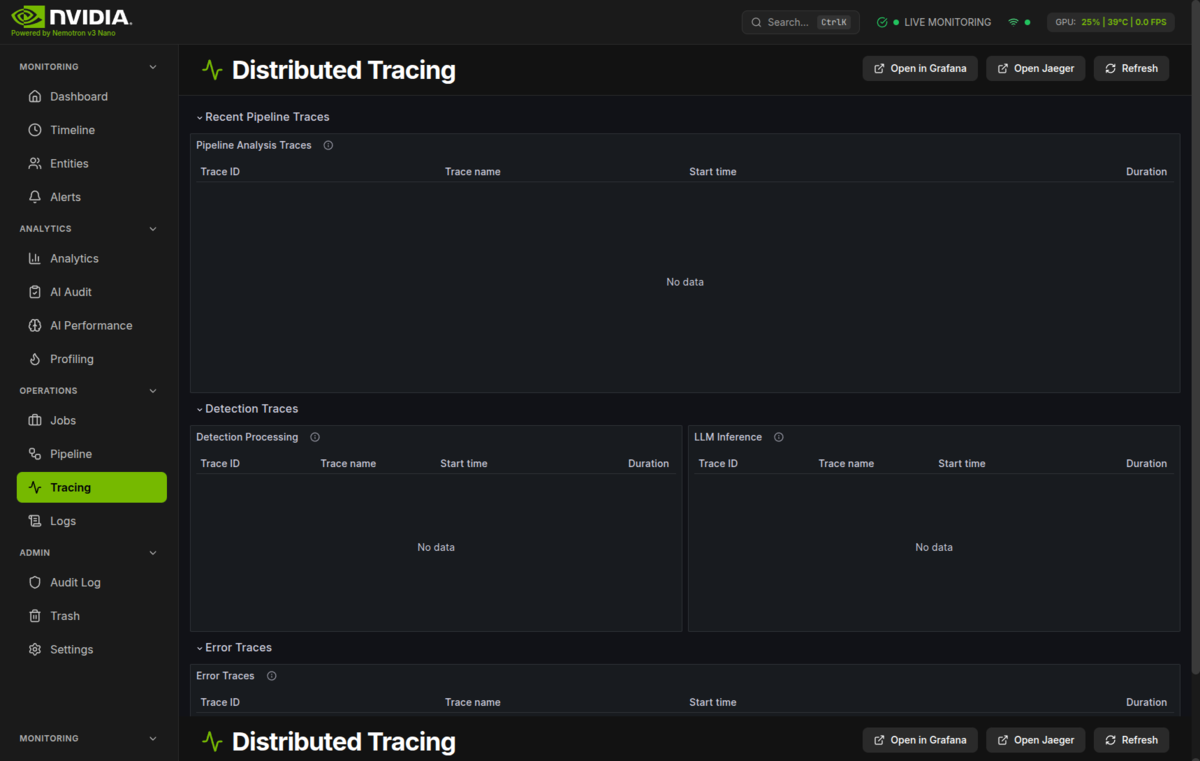
Distributed tracing dashboard for tracking requests through the AI pipeline.
What You're Looking At
The Distributed Tracing page provides end-to-end visibility into how requests flow through the security monitoring pipeline. Traces are collected by Alloy, stored in Tempo (there is no Jaeger container in docker-compose.prod.yml), and visualized through an embedded Grafana dashboard. The page helps you understand latency, identify bottlenecks, and debug issues.
Layout Overview
+----------------------------------------------------------+
|  HEADER: Activity Icon | "Distributed Tracing" | Buttons  |
+----------------------------------------------------------+
|                                                          |
|  +----------------------------------------------------+  |
|  |                                                    |  |
|  |           GRAFANA DASHBOARD EMBED                  |  |
|  |                                                    |  |
|  |  +------------+ +------------+ +------------+      |  |
|  |  | Service    | | Operation  | | Time       |      |  |
|  |  | Filter     | | Filter     | | Range      |      |  |
|  |  +------------+ +------------+ +------------+      |  |
|  |                                                    |  |
|  |  +------------------------------------------+      |  |
|  |  |                                          |      |  |
|  |  |           TRACE LIST / TIMELINE          |      |  |
|  |  |                                          |      |  |
|  |  +------------------------------------------+      |  |
|  |                                                    |  |
|  |  +------------------------------------------+      |  |
|  |  |                                          |      |  |
|  |  |           TRACE DETAIL VIEW              |      |  |
|  |  |                                          |      |  |
|  |  +------------------------------------------+      |  |
|  |                                                    |  |
|  +----------------------------------------------------+  |
|                                                          |
+----------------------------------------------------------+
The page embeds the HSI Distributed Tracing dashboard from Grafana, which provides:
- Service Filter - Select which service(s) to view traces from
- Operation Filter - Filter by specific operations (e.g.,
/api/events,detect) - Time Range - Select the time period to analyze
- Trace List - Searchable list of traces with duration and status
- Trace Detail - Detailed span breakdown for selected traces
Key Components
Header Controls
| Button | Function |
|---|---|
| Open in Grafana | Opens the full Grafana dashboard in a new tab for advanced features |
| Open Jaeger | Links to http://localhost:16686 — dead link as shipped: no Jaeger runs in the compose stack (traces live in Tempo) |
| Refresh | Reloads the embedded dashboard |
Understanding Traces
A trace represents a single request as it flows through the system. Each trace contains multiple spans:
Trace: "Process Detection"
├── Span: "receive_image" (backend) - 5ms
├── Span: "detect_objects" (yolo26) - 150ms
│   ├── Span: "preprocess" - 10ms
│   ├── Span: "inference" - 130ms
│   └── Span: "postprocess" - 10ms
├── Span: "batch_detection" (backend) - 2ms
└── Span: "analyze_batch" (nemotron) - 800ms
    ├── Span: "build_prompt" - 5ms
    ├── Span: "llm_inference" - 790ms
    └── Span: "parse_response" - 5ms
Trace Timeline
The timeline view shows spans as horizontal bars:
| Element | Meaning |
|---|---|
| Bar width | Duration of the span |
| Bar position | When the span started relative to trace start |
| Bar color | Service that executed the span |
| Nesting | Parent-child relationships between spans |
Timeline Patterns:
| Pattern | Meaning |
|---|---|
| Sequential bars | Operations happening one after another |
| Overlapping bars | Concurrent/parallel operations |
| Long gaps | Time waiting (network, queue, etc.) |
| One very long bar | Bottleneck in that operation |
Span Details
Click a span to see detailed information:
| Field | Description |
|---|---|
| Service | Which service executed this span |
| Operation | The operation name (e.g., detect, analyze) |
| Duration | How long the span took |
| Start Time | Absolute timestamp |
| Tags | Key-value metadata (e.g., camera.name, model.name) |
| Logs | Events that occurred during the span |
Service Identification
Traces carry the instrumenting service's name — today only the backend exports spans, under OTEL_SERVICE_NAME (compose default nemotron-backend). AI services are not instrumented, so detect/analyze steps show up as child spans or client-call spans inside the backend trace, not as separate services:
| Service | Description | Typical Operations |
|---|---|---|
| nemotron-backend | FastAPI backend | API requests, batch processing, AI client calls |
Understanding the AI Pipeline
Detection Flow
A typical detection flows through the system like this:
sequenceDiagram
    participant C as Camera
    participant B as Backend
    participant R as YOLO26
    participant N as Nemotron
    participant DB as Database

    C->>B: Upload Image
    activate B
    Note over B: Span: receive_image

    B->>R: Detect Objects
    activate R
    Note over R: Span: detect_objects
    R-->>B: Detections
    deactivate R

    B->>B: Add to Batch
    Note over B: Span: batch_detection

    B->>N: Analyze Batch
    activate N
    Note over N: Span: analyze_batch
    N-->>B: Risk Assessment
    deactivate N

    B->>DB: Save Event
    Note over B: Span: save_event
    deactivate B
Latency Breakdown
Typical latency distribution for a single detection:
| Stage | Typical Duration | Notes |
|---|---|---|
| Image Upload | 10-50ms | Network dependent |
| Object Detection | 100-200ms | GPU dependent |
| Batch Aggregation | 0-90s | Waits for batch window |
| LLM Analysis | 500-2000ms | Model dependent |
| Database Save | 5-20ms | Disk I/O |
Finding Issues
Slow Requests
To find slow requests:
- Set a time range covering the issue period
- Sort traces by duration (descending)
- Click on the slowest traces
- Look for spans with unusually long durations
Common Bottlenecks:
| Long Span | Likely Cause | Solution |
|---|---|---|
llm_inference | LLM processing | Normal for complex analyses |
detect_objects | GPU saturation | Check GPU utilization |
db_query | Database performance | Add indexes, optimize queries |
http_request | Network latency | Check connectivity |
Error Traces
Traces with errors are typically highlighted in red or orange:
- Filter by
error=truetag - Look at span logs for error messages
- Check the stack trace in span details
Common Error Patterns:
| Error | Location | Common Cause |
|---|---|---|
timeout | yolo26 spans | GPU overloaded |
connection_refused | backend spans | Service down |
out_of_memory | nemotron spans | Model too large for GPU |
validation_error | API spans | Invalid request data |
Missing Spans
If traces seem incomplete:
- Check if all services are instrumented
- Verify trace context is propagated between services
- Check if sampling is dropping traces
Correlation Features
Trace to Logs
The Tempo datasource is provisioned with tracesToLogsV2 pointing at Loki with filterByTraceID: true (monitoring/grafana/provisioning/datasources/prometheus.yml), so in Grafana Explore a span links to Loki logs from the same service and time range:
- Open the trace in Grafana Explore (use Open in Grafana, not the kiosk embed)
- Select a span and use the "Logs" / "Logs for your project" link on the span
- Loki shows entries filtered to the span's time range
- Backend log lines carry the trace ID for manual cross-reference (
OTEL_ENABLED=truein compose)
Trace to Profiling
Correlate traces with continuous profiling:
- Note the time range of a slow trace
- Open the Profiling page
- Select the same time range
- See which code paths consumed resources during that trace
Trace to Events
Security events include trace IDs:
- Find an event in the Timeline
- Note the event timestamp
- Search for traces in that time window
- Find the trace that created that event
Settings & Configuration
Grafana URL
The Grafana URL is automatically configured from the backend. If the embedded dashboard fails to load:
- Verify Grafana is running
- Check the
grafana_urlconfig setting - Verify network connectivity
Tempo Configuration
Tempo is provisioned as the tracing data source in Grafana:
# Grafana provisioning (monitoring/grafana/provisioning/datasources/prometheus.yml)
- name: Tempo
  uid: tempo
  type: tempo
  url: http://tempo:3200
  access: proxy
The Tempo container listens on 127.0.0.1:${TEMPO_PORT:-3200} on the host (OTLP gRPC on ${TEMPO_OTLP_GRPC:-4317}).
Sampling
Sampling is configured on the backend via environment variables (see backend/core/telemetry.py; in compose the backend sets OTEL_ENABLED=true, OTEL_SERVICE_NAME=nemotron-backend, OTEL_EXPORTER_OTLP_ENDPOINT=http://alloy:4317):
| Setting | Default | Description |
|---|---|---|
OTEL_TRACE_SAMPLE_RATE | 1.0 | Percentage of traces to keep (1.0 = 100%) |
For production, consider lowering it to 0.1-0.2 (keep 10-20% of traces) to reduce storage.
Retention
Trace retention lives in Tempo's config, not Jaeger's (monitoring/tempo/tempo-config.yml):
| Setting | Default | Description |
|---|---|---|
block_retention | 720h (30 days) | How long trace blocks are kept |
Troubleshooting
Dashboard Shows "No Data"
- Check Tempo and Alloy are running:
podman ps -a --filter name=tempo --filter name=alloy - Verify tracing is enabled:
OTEL_ENABLED=trueon the backend (compose default) - Check time range: Ensure the selected time range has traces
- Verify datasource: The
tempodatasource is provisioned automatically in Grafana
Traces are Missing Spans
- Check service connectivity: Ensure the backend can reach Alloy (
OTEL_EXPORTER_OTLP_ENDPOINT, compose defaulthttp://alloy:4317) - Verify trace propagation: Check that trace headers are passed between services
- Check sampling: Traces might be sampled out
High Latency in Tracing
Tracing overhead should be minimal (<1%), but if you notice impact:
- Reduce the number of spans per trace
- Increase sampling rate (keep fewer traces)
- Use asynchronous span export
"Failed to load configuration" Error
The frontend couldn't fetch the Grafana URL:
- Verify the backend is running
- Check network connectivity
- The dashboard will use
/grafanaas a fallback
Technical Deep Dive
Architecture
Only the backend exports spans today (backend/core/telemetry.py); the AI services are not OpenTelemetry-instrumented, so AI-side latency appears as time inside the backend's outbound call spans.
flowchart LR
    subgraph Services["Instrumented Services"]
        B[Backend]
    end

    subgraph Collection["Trace Collection"]
        A[Alloy :4317]
        T[Tempo :3200]
    end

    subgraph Visualization["Visualization"]
        G[Grafana]
        F[Frontend]
    end

    B -->|"OTLP (http://alloy:4317)"| A
    A -->|"otelcol.exporter.otlp → tempo:4317"| T
    T -->|query| G
    G -->|iframe| F

    style Services fill:#e0f2fe
    style Collection fill:#fef3c7
    style Visualization fill:#dcfce7
Related Code
Frontend:
- Tracing Page:
frontend/src/components/tracing/TracingPage.tsx - Grafana URL Utility:
frontend/src/utils/grafanaUrl.ts
Backend:
- Tracing Configuration:
backend/core/telemetry.py
Infrastructure:
- Tempo Container:
docker-compose.prod.yml(tempo service) +monitoring/tempo/tempo-config.yml - Grafana Dashboard:
monitoring/grafana/dashboards/tracing.json(uidhsi-tracing) - Alloy Configuration:
monitoring/alloy/config.alloy(OTLP receiver → Tempo exporter)
OpenTelemetry Integration
The system uses OpenTelemetry for distributed tracing:
# Example: Creating a span in Python
from opentelemetry import trace

tracer = trace.get_tracer(__name__)

with tracer.start_as_current_span("detect_objects") as span:
    span.set_attribute("camera.name", camera_name)
    span.set_attribute("image.size", image_size)
    result = detector.detect(image)
    span.set_attribute("detection.count", len(result))
Trace Context Propagation
Trace context is propagated between services using W3C Trace Context headers:
Quick Reference
When to Use Tracing
| Scenario | What to Look For |
|---|---|
| Slow API response | Long spans in the trace |
| Failed request | Error tags and span logs |
| Intermittent issues | Compare fast vs slow traces |
| Service debugging | Spans from specific service |
Common Actions
| I want to... | Do this... |
|---|---|
| Find slow requests | Sort by duration, click longest |
| Find errors | Filter by error=true |
| See request flow | Expand trace to see all spans |
| Debug a specific event | Search by time range of event |
| Compare performance | Select two traces, use compare view |
| Get more details | Open in Grafana Explore (Tempo datasource) |